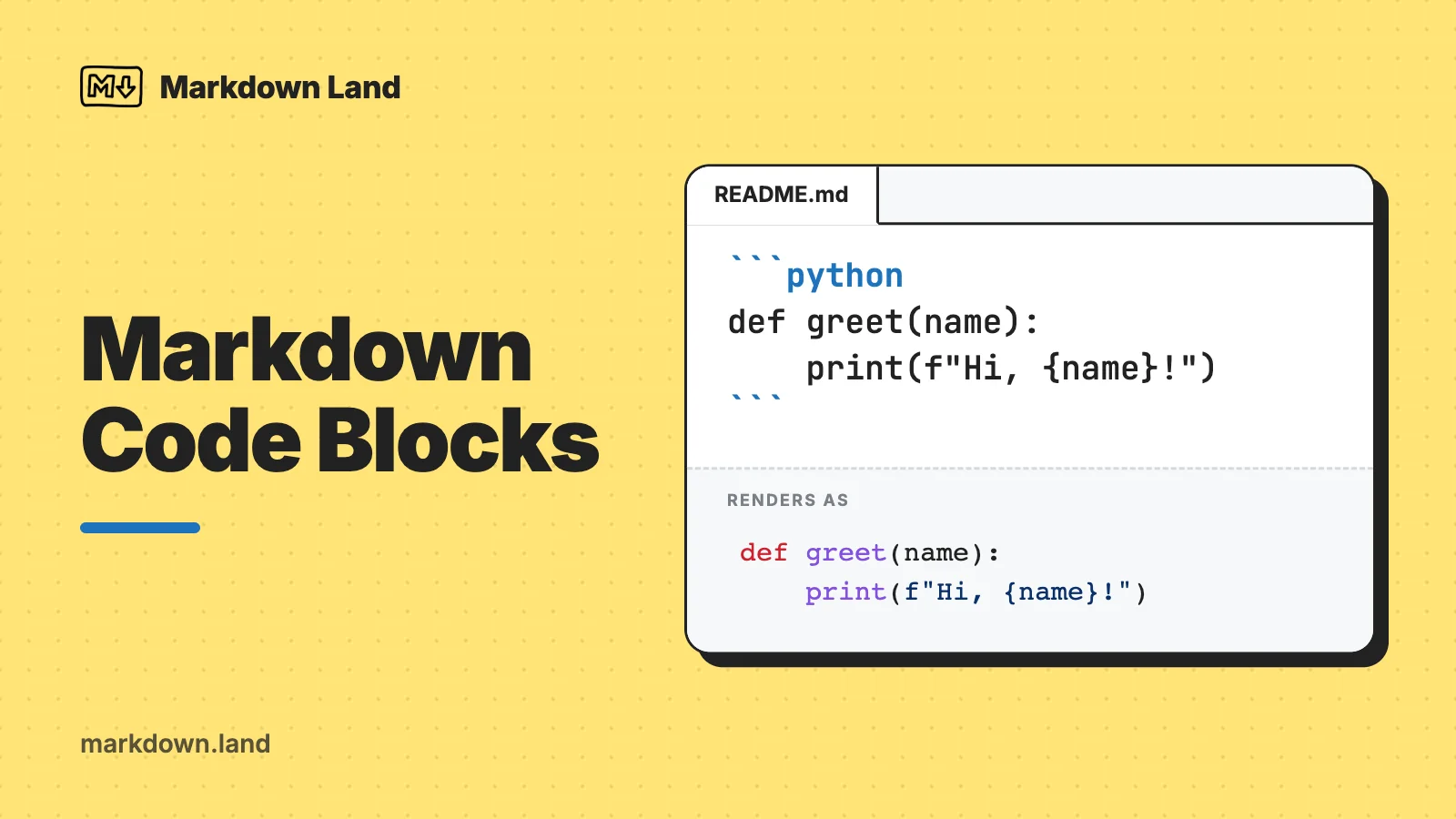
To create a code block in Markdown, put three backticks (```) on the line before your code and three on the line after it. Add a language name right after the opening backticks to turn on syntax highlighting:
```python
def greet(name):
    return f"Hello, {name}!"

print(greet("world"))
```
Result:
def greet(name):
    return f"Hello, {name}!"

print(greet("world"))
For a bit of code inside a sentence, use single backticks instead: `print()` becomes print().
So there are three ways to include code in a Markdown document:
- Inline code, for code within a line of text
- Fenced code blocks, with backticks or tildes, optionally with syntax highlighting
- Indented code blocks, the original Markdown way
In this article, I’ll show all three, plus the tricky cases: code that contains backticks, code blocks inside lists, and the special code blocks GitHub turns into diffs, diagrams, math and maps. At the end, you’ll find a table of language identifiers that work on GitHub.
Markdown inline code
Inline code is surrounded by single backticks (`). Use it to mention a function name, a command, a file name or a short snippet in the middle of a sentence:
Use `print("Hello, world!")` to print a message to the screen.
Result:
Use
print("Hello, world!")to print a message to the screen.
Inside backticks, Markdown is not processed. `**not bold**` shows the asterisks literally, which also makes inline code a handy way to show Markdown syntax itself. Inline code is not syntax highlighted on most platforms.
Inline code that contains backticks
What if your code contains a backtick, like a JavaScript template string? Wrap it in double backticks. The rule is simple: the opening and closing backtick strings must be the same length, and that length must differ from any run of backticks inside the code.
Use ``const s = `hi`;`` for a template string.

A single backtick looks like this: `` ` ``

And with backticks at both ends: `` `code` ``
Result:
Use
const s = `hi`;for a template string.A single backtick looks like this:
`And with backticks at both ends:
`code`
Notice the spaces in the last two examples. When the code starts or ends with a backtick, add a space after the opening and before the closing delimiter. Markdown strips one space on each side, so they don’t show up in the result.
Fenced code blocks
A fenced code block starts with a line of at least three backticks (```) or three tildes (~~~), and ends with a matching line. In the most basic form, you leave out the language:
Some regular text here, and here's the code example:

```
print("Hello, world!")
for i in range(10):
    print(i)
```
Tildes do exactly the same thing:
~~~
print("Hello, world!")
~~~
The rules, according to the CommonMark spec:
- The closing fence must use the same character as the opening fence (backticks or tildes) and be at least as long.
- Everything between the fences is shown exactly as typed. No Markdown is processed inside.
- If you forget the closing fence, the code block runs until the end of the document (or of the list item or blockquote it’s in).
- A fenced block doesn’t need a blank line before it, but I always add one before and after. It makes the raw text easier to read and avoids surprises with less strict parsers.
Fenced code blocks are not part of the original 2004 Markdown, but CommonMark and GitHub Flavored Markdown (GFM) include them, and practically every Markdown tool you’ll use today supports them.
Syntax highlighting
To enable syntax highlighting, put a language identifier right after the opening fence:
```javascript
const items = ["apple", "banana"];
items.forEach((item) => console.log(item));
```
Result:
const items = ["apple", "banana"];
items.forEach((item) => console.log(item));
Markdown itself doesn’t highlight anything. The parser only passes the language on (usually as a language-javascript class on the <code> element), and a highlighter does the coloring. GitHub uses its own Linguist library; static site generators and editors use tools like Shiki, Prism, highlight.js or Pygments. That’s why supported language names differ a little per platform. The common ones, like python, js or bash, work almost everywhere. See the table of language identifiers below.
Indented code blocks
The original Markdown way to create a code block is to indent every line with four spaces (or a tab). It works in every Markdown parser:
Here's some regular text. And now a code block:

    print("Hello, world!")
    if True:
        print('true!')
However, indented code blocks have some downsides:
- You can’t specify a language, so you won’t get proper syntax highlighting.
- They need a blank line before them. An indented line directly below a paragraph is treated as part of that paragraph.
- Inside lists, you need even more indentation, which gets confusing fast.
- They’re harder to type and to copy-paste correctly.
Unless you’re stuck with a very old Markdown parser, I strongly suggest using fenced code blocks.
How to show triple backticks inside a code block
Say you want to show someone how to write a code block, like I do in this article. If you wrap it in three backticks, the inner ``` closes your block too early. The fix: make the outer fence longer. Use four backticks for the outer fence:
````md
```python
print("Hello, world!")
```
````
Result:
```python
print("Hello, world!")
```
Alternatively, use tildes for the outer fence. Backticks inside a tilde fence can never close it:
~~~md
```python
print("Hello, world!")
```
~~~
Need to show four backticks? Use five for the outer fence. There’s no limit.
Code blocks inside lists
Step-by-step instructions often need a command inside a numbered list. To keep the code block inside the list item, indent the whole block (both fences and the code) to line up with the item’s text. For 1. that’s three spaces; for - it’s two:
1. Install the dependencies:

   ```bash
   npm install
   ```

2. Start the development server:

   ```bash
   npm run dev
   ```
Result:
Install the dependencies:
npm installStart the development server:
npm run dev
If you don’t indent the code block, it ends the list. The next item then starts a new list, which can mess up your numbering and spacing. For an indented code block inside a list, you need the item’s indentation plus four more spaces, which is one more reason to stick with fences.
Special code blocks on GitHub
On GitHub, some language identifiers do more than color the code. These work in READMEs, issues, pull requests, discussions and wikis. Other platforms may show them as plain code blocks.
diff: show what changed
A diff block colors lines starting with + green and lines starting with - red. Great for showing a before and after in a README or an issue. This one isn’t GitHub-only: most highlighters support diff.
```diff
 def greet(name):
-    print("Hello " + name)
+    print(f"Hello, {name}!")
```
mermaid: diagrams from text
GitHub renders a mermaid block as a diagram: flowcharts, sequence diagrams, Gantt charts and more.
```mermaid
flowchart LR
    A[Write Markdown] --> B[Commit]
    B --> C{CI passes?}
    C -->|Yes| D[Merge]
    C -->|No| A
```
math: formulas
A math block is rendered as a LaTeX-style formula. It’s an alternative to wrapping the formula in $$.
```math
E = mc^2
```
geojson, topojson and stl: maps and 3D models
A geojson or topojson block becomes an interactive map, and an stl block (ASCII STL) becomes a 3D model you can rotate:
```geojson
{
  "type": "Feature",
  "properties": { "name": "Amsterdam" },
  "geometry": { "type": "Point", "coordinates": [4.8952, 52.3702] }
}
```
GitHub documents all of these in Creating diagrams and Writing mathematical expressions. For more GitHub-specific tricks, see my article on writing a README.md.
Line numbers and highlighted lines
Standard Markdown has no syntax for line numbers or for highlighting specific lines, and neither does GitHub. On GitHub, the workaround is to link to the lines in the actual file: open the file, click a line number, shift-click another, and copy the permalink. When you paste such a permalink in an issue or pull request, GitHub shows those lines as a code snippet.
Many documentation tools do add this feature, each with their own syntax after the language name:
| Tool | Line numbers | Highlight lines 2 and 4 to 6 |
|---|---|---|
| Docusaurus | ```js showLineNumbers | ```js {2,4-6} |
| VitePress | ```js:line-numbers | ```js{2,4-6} |
| MkDocs (Material, with pymdownx.highlight) | ``` py linenums="1" | ``` py hl_lines="2 4-6" |
| Hugo | ```go {linenos=true} | ```go {hl_lines=[2,"4-6"]} |
Language identifiers for syntax highlighting
Which language identifiers work depends on the platform. GitHub uses the language list from Linguist’s languages.yml, which contains hundreds of languages. It matches names case-insensitively and also accepts many aliases and file extensions. Here are the ones you’ll need most, all tested on GitHub:
| Language | Identifier | Also works |
|---|---|---|
| Bash / shell script | bash | sh, shell, zsh |
| Shell session (prompt plus output) | console | shellsession |
| PowerShell | powershell | pwsh, ps1 |
| C | c | |
| C++ | cpp | c++ |
| C# | csharp | cs, c# |
| CSS | css | |
| SCSS | scss | |
| Diff / patch | diff | patch, udiff |
| Dockerfile | dockerfile | containerfile |
| Go | go | golang |
| HTML | html | xhtml |
| Java | java | |
| JavaScript | javascript | js, node, jsx |
| JSON | json | |
| JSON with comments | jsonc | |
| Kotlin | kotlin | kt |
| Markdown | markdown | md |
| PHP | php | |
| Plain text (no highlighting) | text | |
| Python | python | py, python3 |
| Ruby | ruby | rb |
| Rust | rust | rs |
| SQL | sql | |
| Swift | swift | |
| Terraform / HCL | hcl | terraform, tf |
| TOML | toml | |
| TypeScript | typescript | ts |
| TypeScript with JSX | tsx | |
| XML | xml | |
| YAML | yaml | yml |
Two tips. First, if you want no highlighting at all, use text rather than txt: GitHub maps txt to a different language. Second, stick to lowercase identifiers. GitHub doesn’t care about case, but other tools aren’t always that forgiving.
For other platforms, check the documentation of your highlighter. The names in the “Identifier” column work in most of them.
Learn more
Code blocks are one of the most useful parts of Markdown: use fences, add a language, and make the outer fence longer when you need to show backticks. For a quick overview of everything else Markdown can do, check out my Markdown cheat sheet. If you’re writing documentation for a project, my guide on how to write a README.md puts all of this to use, and you might also like my articles on Markdown tables and centering things in Markdown.
FAQ
How do I make a code block in Markdown?
Put a line with three backticks (```) before your code and another one after it. Add a language name after the first three backticks, like ```python, for syntax highlighting. On a US keyboard, the backtick key is in the top-left corner, below Esc.
Why isn’t my code block highlighted?
The most common causes: you didn’t add a language identifier, the identifier is misspelled or unknown to the platform, you used an indented code block (which can’t have a language), or the platform simply doesn’t highlight code. Also check that the opening fence is on its own line and that there’s no space inside the backticks.
What’s the difference between “` and ~~~?
Nothing, in the result. Both create a fenced code block in CommonMark and GFM. Backticks are far more common. Tildes are handy when the code itself contains lines of backticks, for example when you’re showing Markdown.
How do I escape a backtick in Markdown?
In normal text, put a backslash in front of it: \`. Inside inline code, backslashes don’t work; wrap the code in double backticks instead, like ``code with a ` backtick``. To show triple backticks inside a code block, use four backticks or tildes for the outer fence.
Can I add a copy button to a Markdown code block?
Not with Markdown syntax; it’s up to the platform. GitHub adds a copy button to fenced code blocks automatically, and most documentation tools (Docusaurus, VitePress, MkDocs Material) offer one too.