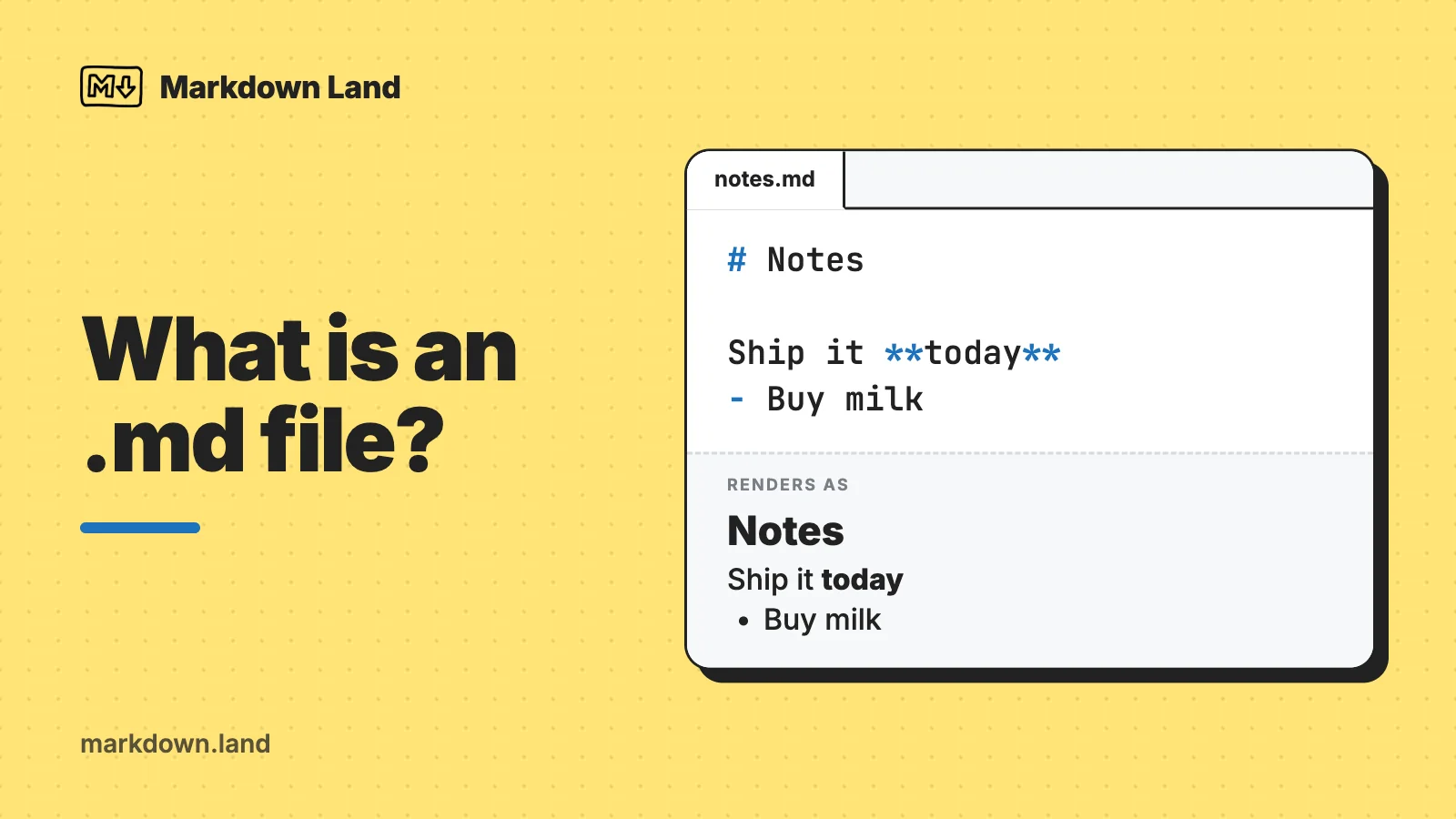
An .md file is a Markdown file: an ordinary text document that uses a few symbols for formatting, like # for a heading and **two asterisks** for bold. It’s plain text, so it’s safe to open, and every computer and phone can already read it.
- To just read it: open it in Notepad (Windows), TextEdit (Mac), or any other text editor. You’ll see the raw text, symbols and all.
- To see it nicely formatted: open it in a Markdown viewer. The free Visual Studio Code works on Windows, Mac, and Linux: open the file and press
Ctrl+Shift+V(Cmd+Shift+Von a Mac). Recent versions of Windows 11 Notepad and Google Drive can show the formatting too (more on that below). - To turn it into Word or PDF: paste it into Google Docs with “Paste from Markdown”, or convert it with Pandoc:
pandoc notes.md -o notes.docx.
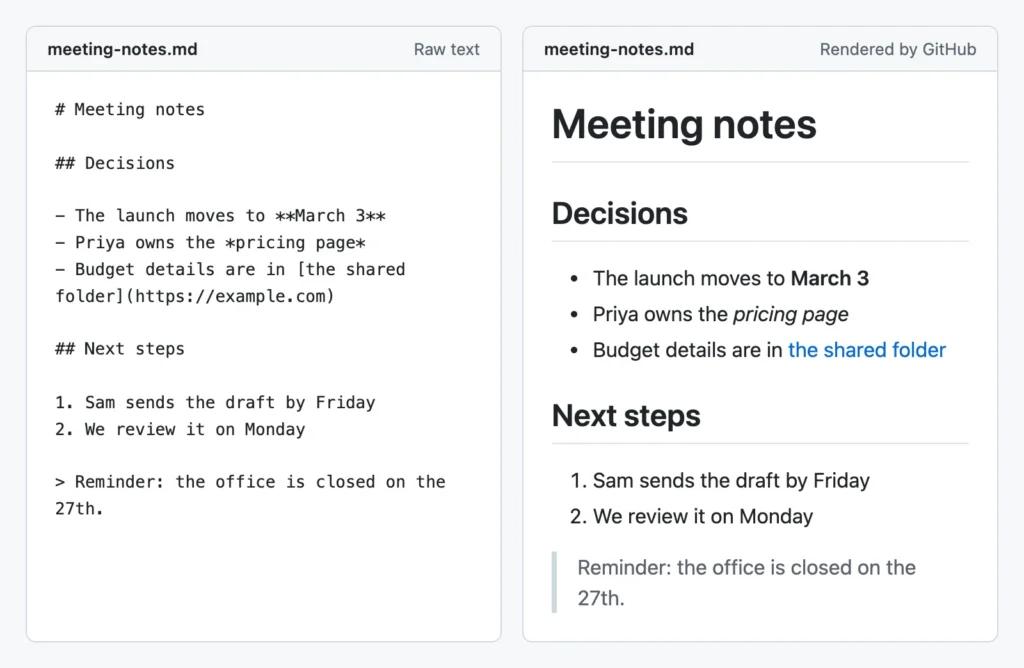
Here’s what the inside of a typical .md file looks like. This is the kind of thing you get when you download a document from ChatGPT or Claude:
# Meeting notes

## Decisions

- The launch moves to **March 3**
- Priya owns the *pricing page*
- Budget details are in [the shared folder](https://example.com)

## Next steps

1. Sam sends the draft by Friday
2. We review it on Monday

> Reminder: the office is closed on the 27th.
And here’s the same file next to how GitHub shows it. The symbols are gone, and you get headings, bold text, lists, and a clickable link:
Below, I’ll explain what these files are, then go through every way to open one on Windows, Mac, phones, and the web, how to turn one into a Word document, Google Doc, or PDF, and which free editors are worth installing.
What is an .md file?
The .md extension stands for Markdown, a simple way to format text that John Gruber created in 2004. The idea is that the text stays readable even when nothing renders it: a line starting with # is obviously a title, and **this** obviously means “this is important”. A Markdown app turns those symbols into real formatting. Any other app just shows them as they are.
A few things worth knowing:
- It’s plain text. There’s no hidden formatting, no macros, and no code that runs when you open it. Technically, it’s the same kind of file as a .txt file, just with a different name at the end.
- You’ll sometimes see
.markdowninstead of.md. Same thing, longer name. - It’s everywhere. Software projects use it for documentation (the famous README.md file on GitHub), note apps like Obsidian store every note as an .md file, and AI chat tools write their answers in it.
- It has no layout of its own. There’s no page size, font, or color in the file. The app that shows it decides what it looks like, so the same file looks a bit different in each app.
What the symbols mean
If you just want to read the raw file, this table decodes the symbols you’ll run into most. My Markdown cheat sheet has the complete list.
| You see | It means |
|---|---|
# Title, ## Section | A heading. More # signs means a smaller heading. |
**text** or __text__ | Bold |
*text* or _text_ | Italic |
- item, * item, or 1. item | A bulleted or numbered list |
[words](https://…) | A link: the words are clickable and lead to the address in parentheses |
 | An image (the picture itself is a separate file, or online) |
> text | A quote or callout |
`text` or lines between ``` | Code or commands, shown in a monospace font |
Lines like | Name | Age | and |---|---| | A table |
--- on its own line | A horizontal divider line |
- [ ] and - [x] | A to-do list with unchecked and checked boxes |
How to open an .md file: quick overview
Every device can show the raw text. Seeing the formatting takes either a recent built-in app or a free one:
| Where | Read the raw text | See it formatted |
|---|---|---|
| Windows | Notepad | Up-to-date Windows 11 Notepad, VS Code (Ctrl+Shift+V), PowerToys preview pane |
| Mac | TextEdit, Quick Look (Space bar) | VS Code (Cmd+Shift+V), Apple Notes import (macOS 26+), a Quick Look extension |
| iPhone and iPad | Files app | Share to Notes (iOS 26+), Obsidian |
| Android | Any text viewer | Markor, Obsidian |
| Web | Drag the file into Chrome or Edge | Google Drive and Docs, OneDrive, GitHub |
How to open an .md file on Windows
First, a tip: Windows hides file extensions by default, so your file may show up as just “notes” with the type “MD File”. To see the full name, open File Explorer and choose View > Show > File name extensions (on Windows 10: the View tab, then check File name extensions).
Notepad
Right-click the file, choose Open with, and pick Notepad. If Windows asks how you want to open the file, choose Notepad and, if you like, tick the box to always use it for .md files.
What you see next depends on your version of Notepad. In 2025, Microsoft started adding what it calls lightweight formatting to Notepad on Windows 11. It reads Markdown: headings, bold, italic, links, and lists show up formatted, and a later update added tables. Microsoft keeps tweaking it; the Notepad release notes list the latest changes. You can switch between the formatted view and the raw Markdown from the View menu or the toggle in the status bar at the bottom, and you can turn formatting off completely in Notepad’s settings.
I couldn’t test this on a Windows machine myself, so this is based on Microsoft’s announcements. If your Notepad doesn’t show a formatting toolbar, you probably have an older version (or Windows 10), and you’ll see the raw text. That’s still perfectly readable once you know the symbols from the table above.
Visual Studio Code (free, best formatted view)
If you’ll be opening .md files more than once, I recommend installing Visual Studio Code, Microsoft’s free editor. It’s aimed at programmers, but you don’t need to be one to use it as a Markdown viewer:
- Right-click the .md file and choose Open with > Visual Studio Code (or drag the file onto the VS Code window).
- Press
Ctrl+Shift+Vto switch to the formatted preview. - Or press
Ctrl+K, let go, then pressVto get the raw text and the preview side by side. Edit on the left, and the right side updates as you type.
These shortcuts come from the VS Code Markdown documentation. On a Mac, use Cmd instead of Ctrl.
File Explorer preview with PowerToys
Microsoft’s free PowerToys utilities include a Markdown previewer for File Explorer. Install PowerToys, make sure the Markdown previewer is switched on under File Explorer add-ons, then turn on the preview pane in File Explorer (View > Preview pane). Click an .md file once, and you’ll see it formatted on the right without opening anything. Handy if you have a folder full of them.
In your browser
You can drag an .md file into a Chrome or Edge window to read it, but you’ll get raw text, not formatting. Some browsers offer to download the file instead of showing it. For a formatted view in the browser, use Google Drive or OneDrive, which I cover in the online section below.
How to open an .md file on a Mac
TextEdit
Right-click (or Control-click) the file, choose Open With, and pick TextEdit. You’ll see the raw text. If you double-click and a different app opens, that’s fine too; it just means some app on your Mac has claimed .md files.
One TextEdit trap if you’re writing Markdown: a new TextEdit document is rich text by default, which isn’t what you want. Choose Format > Make Plain Text (Shift+Cmd+T) before you start, then save with a name ending in .md. If TextEdit asks whether to use .md or the standard .txt extension, choose .md.
Quick Look (Space bar)
Select the file in Finder and press the Space bar. On my Mac (macOS 26), Quick Look shows .md files as plain text: macOS classifies them as a kind of plain text file, and it doesn’t come with a Markdown previewer. If you want formatted previews, the free, open-source QLMarkdown adds them. It’s still actively maintained, and you need to open the app once after installing it so macOS picks up the extension.
Apple Notes (macOS 26 and later)
Since macOS Tahoe 26, the Notes app can import Markdown and turn it into formatted notes. Open Notes, choose File > Import Markdown, and select your .md file (Apple’s instructions). This creates a new note with a copy of the content; your .md file itself stays unchanged. It’s a nice option if you just want to read a document from an AI tool and maybe keep it.
VS Code and other apps
Visual Studio Code works the same as on Windows: open the file and press Cmd+Shift+V for the preview, or Cmd+K then V for a side-by-side view. The Markdown editors I list further down all run on the Mac too.
How to open an .md file on iPhone, iPad, and Android
iPhone and iPad: tap the file in the Files app, and it opens in a preview that shows the raw text. For a formatted version, touch and hold the file, tap Share, and pick Notes. Apple says that in iOS 26, iPadOS 26, and later, Notes converts Markdown into formatted text. If you work with Markdown files regularly, the free Obsidian app can open and edit them.
Android: phones vary a lot by manufacturer, and I don’t know of a built-in Markdown viewer that ships everywhere. A text viewer or file manager will show the raw text. For a formatted view, Markor is a free, open-source Markdown editor (available from F-Droid and GitHub), and Obsidian has an Android app as well.
I haven’t tested the mobile apps myself; the above is based on Apple’s documentation and the apps’ own pages.
How to open an .md file online
You may already have a good Markdown viewer in a cloud account you use every day:
- Google Drive and Google Docs. Since October 2026, Google Drive shows Markdown files formatted, for personal Google accounts and Workspace alike. Upload the file, right-click it, and choose Open with > Preview; at the top you can switch between Markdown and Preview. Double-click it instead, and it opens in Google Docs in “Markdown Mode”, where you can edit, comment, and share it while it stays an .md file (Google’s help page). Google rolled this out gradually, so it may take a little while to reach every account.
- OneDrive and SharePoint. Microsoft added Markdown support to OneDrive and SharePoint in 2026: open an .md file in OneDrive on the web to view it formatted, or edit it with a live preview next to it.
- GitHub. If the file came from a GitHub repository, just click it on GitHub. GitHub formats every .md file automatically, which is why READMEs look the way they do.
There are also many “Markdown viewer” websites where you paste or upload a file. Some are fine, but you usually can’t tell where your text ends up. Don’t paste anything sensitive into a random website: contracts, medical or financial details, customer data, or anything your employer wouldn’t want shared. A cloud account you already trust, or an app on your own computer, is the safer choice.
How to convert an .md file to Word, Google Docs, or PDF
Often you don’t want to view the file; you want a normal document you can send to someone. Here are the routes I’d use, from easiest to most powerful.
Into a Google Doc (then Word or PDF)
Google Docs can convert Markdown into normal formatting when you paste it. It’s switched off by default:
- Create a new Google Doc and go to Tools > Preferences. Check Enable Markdown.
- Open your .md file in a text editor (Notepad, TextEdit), select all the text, and copy it.
- In the Google Doc, right-click and choose Paste from Markdown. Headings, bold and italic text, lists, and links come through as real formatting.
- Need a file? Choose File > Download > Microsoft Word (.docx) or PDF Document (.pdf).
Google’s Markdown help page describes this, plus the opposite direction: File > Download > Markdown (.md) turns a Google Doc into an .md file. This paste route is also the answer if you have Markdown text from an AI chat on your clipboard rather than in a file.
Into Microsoft Word
Word doesn’t understand Markdown. As far as I can tell from Microsoft’s documentation (as of October 2026), Word has no Markdown import: if you open an .md file in Word, you get the raw text with all its symbols. To get a properly formatted .docx, use one of these:
- The Google Docs route above, then download as Word.
- Pandoc, a free converter (see below). It creates a real Word document with Word’s own heading styles, so the navigation pane and table of contents work.
- A Markdown editor with Word export, such as Typora.
Into a PDF
- Google Docs: paste from Markdown as above, then File > Download > PDF Document.
- VS Code: install the Markdown PDF extension (by yzane, actively maintained). Open your file, right-click in the text, and choose Markdown PDF: Export (pdf). It uses Chrome or Edge behind the scenes, or downloads its own copy of Chromium the first time.
- Obsidian: has a built-in Export to PDF.
- Pandoc: see the next section.
Convert with Pandoc (free, any format)
Pandoc is a free command-line tool that converts between dozens of document formats. You type a command in Terminal (Mac) or PowerShell (Windows) in the folder where your file is. I tested these commands with Pandoc 3.9 on my Mac:
# Word document
pandoc notes.md -o notes.docx

# A web page you can open in any browser (and print to PDF from there)
pandoc notes.md -s -o notes.html

# LibreOffice / OpenDocument
pandoc notes.md -o notes.odt
The Word file came out with real headings (Heading 1, Heading 2), bold text, working links, and a proper Word table. The -s in the HTML command makes it a complete web page instead of a fragment.
PDF is the tricky one. pandoc notes.md -o notes.pdf needs a separate PDF engine, and out of the box it looks for LaTeX. Without it, I got this error:
pdflatex not found. Please select a different --pdf-engine or install pdflatex
You can fix that by installing a LaTeX distribution (MiKTeX on Windows, MacTeX on a Mac; both are big downloads) or by picking another engine with --pdf-engine, as described in the Pandoc manual. For a one-off PDF, I find it simpler to create the HTML version, open it in a browser, and use Print > Save as PDF.
Editing .md files: free Markdown editors worth installing
Because an .md file is plain text, you can edit it in any text editor, including Notepad and TextEdit. Just make sure you save it as plain text and keep the .md extension. A dedicated Markdown editor makes life easier, though: it shows the formatting as you type and helps with things like tables.
Here’s my short list. I only included apps that were still being updated in 2026 (I checked their release pages in October 2026). There are many abandoned Markdown editors out there; I left those out.
| Editor | Price | Runs on | Good for |
|---|---|---|---|
| Visual Studio Code | Free | Windows, Mac, Linux | Viewing and editing any .md file, with a side-by-side preview |
| Obsidian | Free (paid sync is optional) | Windows, Mac, Linux, iPhone, Android | Notes and personal knowledge bases; every note is an .md file in a folder you choose |
| MarkText | Free, open source | Windows, Mac, Linux | Writing with formatting shown as you type, similar to Typora |
| Zettlr | Free, open source | Windows, Mac, Linux | Long-form and academic writing, with citations and export to Word and PDF |
| Joplin | Free, open source (paid cloud optional) | Windows, Mac, Linux, iPhone, Android | A note-taking app that uses Markdown |
| Markor | Free, open source | Android | Reading and editing .md files on an Android phone |
| Typora | Paid ($14.99, 15-day free trial) | Windows, Mac, Linux | The most polished “what you see is what you get” Markdown editor, with export to Word and PDF |
My advice: if you only need to read the occasional file from an AI tool, VS Code or Google Drive is plenty. If you want to write in Markdown, try Obsidian or MarkText. If you want to learn the syntax itself, it takes about ten minutes with my Markdown introduction.
Why ChatGPT and Claude give you .md files
AI chat tools write their answers in Markdown. The chat window turns it into headings, bold text, and tables before you see it, so you normally don’t notice. When you download a document, export a conversation, or copy an answer as text, you get the Markdown underneath, and with it the # and ** symbols.
There are good reasons the AI companies chose it. Markdown is compact, readable without any software, and the models have seen enormous amounts of it in documentation and on GitHub. It works the other way around too: if you give an AI tool a document, Markdown is one of the formats it handles best. You can read more about where Markdown comes from on my homepage.
If you’d rather not deal with .md files at all, just ask. Something like “give me this as a Word document” often works, depending on the tool and your plan. Otherwise, the Google Docs paste route above is the quickest fix.
FAQ
Is an .md file safe to open?
Yes. It’s plain text, and opening it in a text editor or Markdown viewer doesn’t run anything. The usual common sense applies to what’s in it: a link in a Markdown file can lead anywhere, just like a link in an email. And on Windows, with extensions hidden, check that the file really ends in .md and isn’t something like notes.md.exe.
Can I open an .md file in Word?
You can open it, but Word shows the raw text with all the symbols, because it doesn’t convert Markdown. To get a formatted Word document, paste the text into Google Docs with “Paste from Markdown” and download it as .docx, or run pandoc file.md -o file.docx.
How do I convert an .md file to PDF?
The easiest free options: paste it into Google Docs (Paste from Markdown) and download as PDF, or open it in VS Code with the Markdown PDF extension and choose Export (pdf). Pandoc can do it too, but it needs a PDF engine such as LaTeX installed.
What’s the difference between .md and .txt?
Inside, nothing: both are plain text. The .md extension tells apps “this text uses Markdown symbols”, so Markdown-aware apps show it formatted. If an app refuses to open an .md file, you can rename it to .txt and it will open as ordinary text. Rename it back to .md if you want the formatting again.
What is README.md?
It’s the introduction file of a software project, written in Markdown. GitHub and GitLab show it on a project’s front page automatically. I wrote a whole article about README.md files, including a template.
My .md file is full of strange characters. Is it broken?
If you see #, *, and [ brackets between normal words, no: that’s just Markdown, and the symbol table at the top of this page explains them. If you see real gibberish, the file probably isn’t Markdown at all. The .md extension is occasionally used for other things, such as old game console ROM files.