To add an image in Markdown, type an exclamation mark, the alt text in square brackets, and the path or URL of the image in parentheses. You can add an optional title in quotes after the path:

The result (hover over it to see the title):

That’s all standard Markdown can do with an image. There’s no syntax for the size, alignment, or a caption. For those, you fall back to HTML, and which HTML works depends on where your Markdown is shown. The short version for GitHub:
- Resize:
<img src="images/logo.png" alt="Logo" width="300"> - Center: wrap the image in
<p align="center">…</p> - Side by side: put two images on the same line
- Caption: write an italic line directly below the image
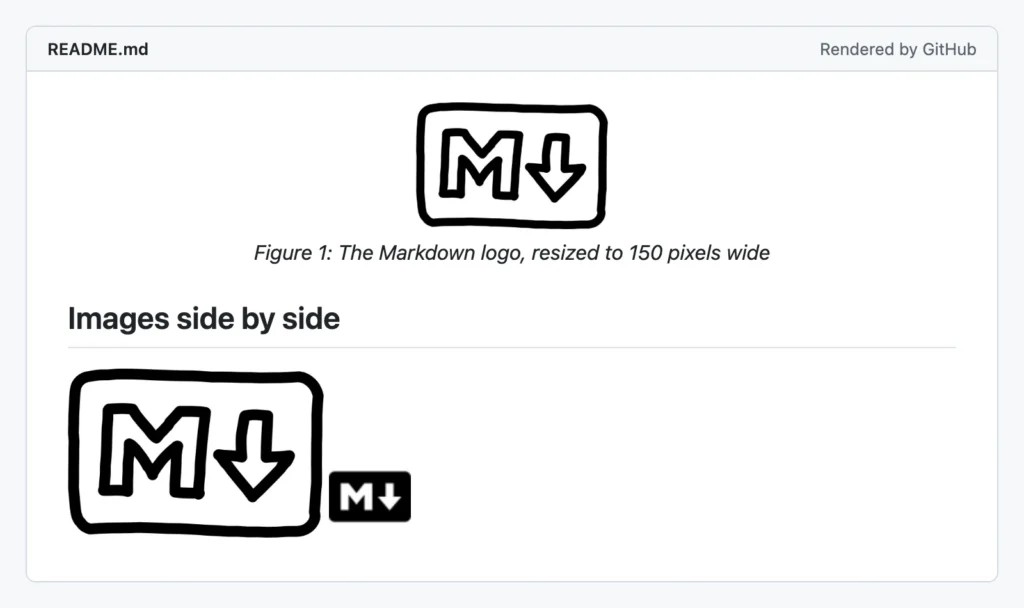
The rest of this article explains each of these, plus image paths, GIFs, videos, alt text, and what to check when an image doesn’t show up. I ran the GitHub examples through GitHub’s own Markdown renderer (its Markdown API) to see which HTML it keeps and which it strips. The CommonMark examples are tested with commonmark.js and markdown-it, and the Pandoc ones with Pandoc 3.9. For apps I can’t run here, like Obsidian and GitLab, I went by their official documentation and say so. The rendered examples on this page are rendered by my WordPress site, so they’ll look a little different on GitHub.
Markdown image syntax
An image in Markdown is a link with an exclamation mark in front of it. It has three parts:
- Alt text in square brackets. Screen readers read it out, and browsers show it when the image can’t load. It’s plain text: if you write
**bold**in it, the asterisks are dropped and the text isn’t bold. - The path or URL in parentheses. This can be a file next to your Markdown file, a path into a folder, or a full URL.
- An optional title after the path, in double quotes, single quotes, or parentheses. Most platforms show it as a tooltip on hover. Don’t put important information in it: touch screen users never see it.
The CommonMark spec on images has every edge case, if you’re curious. An image is an inline element, so you can also put it in the middle of a sentence, in a list item, or in a table cell.
Reference-style images
Just like links, images can be written reference-style. You put a label in the image and define the URL somewhere else in the document, usually at the bottom. This keeps long URLs out of your text and lets you reuse the same image:
Here's our logo: ![The Markdown logo][logo]

You can also leave the label out and use the alt text as the label: ![logo][]

[logo]: images/markdown-logo.png "Markdown"
The definition line itself doesn’t show up in the output. Labels are case-insensitive, so [Logo] and [logo] match.
Linked images and badges
To make an image clickable, put the whole image inside the square brackets of a link. It looks confusing at first, so read it from the inside out:  is the link text of […](url).
[](https://markdown.land)
Result (click it, and you end up on my homepage):

This is exactly how README badges work. A badge is a small image from a service like shields.io, wrapped in a link to the build page, the license, or the package:
[](https://github.com/you/my-project/actions) [](LICENSE)
By the way, GitHub already makes every image clickable: an image that isn’t inside a link gets wrapped in a link to the image file itself, so visitors can open the full-size version. Your own link replaces that.
Image paths: local images, remote images, and READMEs
Most “my image doesn’t show up” problems are path problems. The path in the parentheses is resolved from the location of the Markdown file, not from where you happen to be in your terminal or editor.
Relative paths in a repository
For images that live in the same project, use a relative path. Say your project looks like this:
my-project/
├── README.md
├── images/
│   └── screenshot.png
└── docs/
    ├── guide.md
    └── img/
        └── diagram.png
Then these are the paths to use:
| In this file | To show | Write |
|---|---|---|
README.md | images/screenshot.png |  |
docs/guide.md | docs/img/diagram.png |  |
docs/guide.md | images/screenshot.png |  |
| Any file, on GitHub only | images/screenshot.png |  |
../ means “one folder up,” and ./images/screenshot.png is the same as images/screenshot.png. On GitHub, a path that starts with / is relative to the root of the repository, so /images/screenshot.png works from any file in any folder. GitHub also rewrites relative paths for the branch the visitor is looking at, as explained in GitHub’s docs on READMEs.
Be careful with the leading / outside GitHub, though. On a website it means the root of the domain, and on npm or PyPI, where your README is also shown, relative paths don’t point into your repository at all. If your README is published in several places, a full URL to the raw file is the safest choice (see below). There’s more on this in my article on writing a README.md.
Remote images (a URL)
Any public image URL works, as long as it starts with https:// and points to the image file itself, not to a web page that shows the image:

A common mistake is to copy a GitHub file page URL (with /blob/ in it). That URL returns a web page, not an image. Use one of these instead, which I checked both return the actual PNG:
https://raw.githubusercontent.com/OWNER/REPO/main/images/screenshot.png
https://github.com/OWNER/REPO/blob/main/images/screenshot.png?raw=true
GitHub doesn’t load external images straight from the original server. It serves them through its own image proxy (the URLs become camo.githubusercontent.com), so the image must be publicly reachable. An image on localhost, on your intranet, or behind a login won’t show up for anyone else.
Images from your computer
A path like C:\Users\erik\Pictures\shot.png or /Users/erik/Desktop/shot.png may work in a preview on your own machine, but nobody else has that file. Copy the image into your project, next to the Markdown file or in an images folder, and use a relative path. If you’re not sure what a Markdown file is or where it lives, read what an .md file is.
Editors can do the copying for you. According to the VS Code Markdown docs, you can drag an image into a Markdown file while holding Shift, or paste one, and VS Code copies it into your workspace and inserts the  for you. The markdown.copyFiles.destination setting controls which folder it goes to. Obsidian does the same: pasted or dropped images go to its default attachment location.
Spaces in file names
A space in the path breaks the image in CommonMark and on GitHub. Instead of an image, you see the literal text. You have two fixes: replace each space with %20, or wrap the path in angle brackets:
  
I tested all three on GitHub, commonmark.js, markdown-it, Pandoc, and kramdown (the parser behind Jekyll). Pandoc and kramdown accept the raw space too, but the other two forms work everywhere. Better still: don’t use spaces in image file names. Hyphens are easier on everyone.
Uppercase and lowercase matter
On GitHub and on most web servers, Screenshot.PNG and screenshot.png are different files. The default file systems on macOS and Windows ignore case, so a wrong case works in your local preview and breaks as soon as you push. If an image shows locally but not on GitHub, check the case of every letter in the path, including the extension.
Uploading images in GitHub issues and pull requests
In issues, pull requests, discussions, and comments, you don’t need a file in the repository. Drag the image into the comment box, or paste it from your clipboard. GitHub uploads it right away and inserts the Markdown for you, with a URL like this:

Two things to know. First, GitHub fills in the generic alt text “image”, so replace it with a real description. Second, the size limit is 10 MB for images and GIFs, according to GitHub’s docs on attaching files. Supported image types are PNG, GIF, JPEG, and SVG. You’ll find plenty of READMEs that use these user-attachments URLs too, but for a README I prefer a file in the repository: it’s versioned with the code and works in clones.
Images in private repositories
Relative image paths in a private repository work fine for everyone who has access to that repository. The trouble starts when you show those images somewhere else. An image from a private repository embedded in a public README, a website, or an email won’t load for people without access. Uploaded attachments in a private repository are also only visible to people with access to it. If an image has to be public, put it in a public place.
Markdown image size
Neither CommonMark nor GitHub Flavored Markdown has a way to set the size of an image. The portable solution is an HTML <img> tag with a width attribute. Almost every Markdown renderer allows inline HTML, and GitHub keeps width and height:
<img src="images/markdown-logo.png" alt="The Markdown logo" width="150">
Result:
A few rules that save you some trial and error:
- The value is a number of pixels, without
px. GitHub keepswidth="300px"as well, but plain300is the correct HTML. - Set only the width (or only the height) and the browser keeps the proportions. Set both, and the image can get squashed.
- A percentage, like
width="50%", works in browsers and GitHub keeps it, even though the HTML spec only allows pixel numbers here. It’s relative to the width of the surrounding element, so the image scales with the page. - The
styleattribute doesn’t work on GitHub. I testedstyle="width: 50%"andclass: GitHub removes both. Usewidth. - Inside an HTML tag you write HTML, not Markdown. Relative paths in
srcwork the same as in![](), and GitHub rewrites them the same way.
You’ll also find Markdown-style size syntax like {width=300} online. That’s a platform extension. On GitHub, it just shows up as literal text after the image. See the table below for what works where. For all the attributes the img tag supports, see the img element on MDN.
How to resize an image, per platform
| Platform | How to set the size | Notes |
|---|---|---|
| GitHub (README, issues, PRs) | <img src="logo.png" width="300"> | width, height and align are kept; style and class are removed. Tested. |
| GitLab | {width=300} or {width=50%}; the <img> tag also works | From the GitLab Flavored Markdown docs. Works on videos too. |
| Obsidian | ![[logo.png|300]] for files in your vault,  for external images | Use |300x200 to set both. From Obsidian’s help on embedding files. |
| VS Code preview | <img src="logo.png" width="300"> | No Markdown size syntax. The default security setting blocks images over plain http://. |
| Jupyter Notebook / JupyterLab | <img src="logo.png" width="300"> | Images you drag into a Markdown cell are stored inside the notebook as attachment: images. |
| Pandoc | {width=50%} or {width=300px} | Works in HTML, PDF and Word output. Tested with Pandoc 3.9. |
| Jekyll / GitHub Pages (kramdown) | {: width="300"} | A kramdown attribute list. Tested with kramdown 2.5.2. |
| Hugo | {{< figure src="logo.png" width="300" >}} | Hugo leaves raw HTML out by default, so the figure shortcode is the easy route. |
| Azure DevOps wiki |  | Note the space before = and the trailing x. From the Azure DevOps Markdown guidance. |
The HTML tag is the only option that works on almost all of these platforms. Pandoc’s attributes are part of its link_attributes extension. Here’s what Pandoc 3.9 made of {width=50%}:
<figure>
<img src="logo.png" style="width:50.0%" alt="Logo" />
<figcaption aria-hidden="true">Logo</figcaption>
</figure>
In a PDF, the same image becomes \includegraphics[width=0.5\linewidth,…], so half the text width. Notice the figure and caption: Pandoc does that on purpose, as I explain in the section on captions below.
Center and align images
There’s no Markdown syntax for alignment either. On GitHub, put the image in a paragraph with align="center":
<p align="center">
  <img src="images/markdown-logo.png" alt="The Markdown logo" width="150">
</p>
To let text flow around an image, put align="left" or align="right" on the <img> tag itself. GitHub keeps that too. Centering, on the other hand, always goes on the wrapper, not on the image. I cover all the variations (Markdown inside a centered div, CSS for other platforms, centered logos with badges) in my article on how to center an image in Markdown.
Images side by side
Because images are inline elements, two images on the same line end up next to each other. No HTML needed:
 
Large images won’t fit next to each other, so the browser wraps the second one to the next line. Use <img> tags with a width to make them fit, and put both tags on the same line. That’s a surprise I ran into while testing: with Markdown image syntax, consecutive lines stay in one paragraph, but on GitHub, two <img> tags on separate lines end up stacked on top of each other.
<img src="images/before.png" alt="The settings page before the redesign" width="45%"> <img src="images/after.png" alt="The settings page after the redesign" width="45%">
Side by side with labels: use a table
If you want a label above each image, a Markdown table is a neat trick. The header row holds the labels and the next row holds the images. This works on GitHub, I tested it:
| Light mode | Dark mode | | --- | --- | |  |  |
| Light mode | Dark mode |
|---|---|
|
|
For more control, like a caption under each image or a fixed image width, use an HTML table. Since style is stripped on GitHub, you can’t hide the table borders there. Most people don’t mind.
<table>
  <tr>
    <td><img src="images/light.png" alt="The app in light mode" width="300"></td>
    <td><img src="images/dark.png" alt="The app in dark mode" width="300"></td>
  </tr>
  <tr>
    <td align="center">Light mode</td>
    <td align="center">Dark mode</td>
  </tr>
</table>
Image captions
Markdown has no caption syntax. The title (the part in quotes) is a tooltip, not a caption. What you can do depends on the platform again.
On GitHub: a line of text below the image
The HTML way to add a caption is <figure> with <figcaption>, but GitHub removes both tags. I tested it: the image and the caption text survive as plain content, without the figure around them. So on GitHub, write the caption in italics on the line directly below the image:
\ *Figure 1: The Markdown logo.*
The backslash at the end of the first line is a hard line break, so the caption sits right under the image instead of running on beside it. Leave a blank line instead if you want more space between the two. Result:
Figure 1: The Markdown logo.
For a centered image with a smaller caption, combine align="center" with a <sub> tag. GitHub keeps both:
<p align="center">
  <img src="images/architecture.png" alt="Requests go from the browser to the API, which reads from a cache and a database" width="500">
  <br>
  <sub>Figure 2: How a request flows through the system</sub>
</p>
Where HTML is allowed: figure and figcaption
On your own website or in a static site generator that passes HTML through, use the real thing. It’s the semantic way to tie a caption to an image (see the figure element on MDN):
<figure>
  <img src="images/markdown-logo.png" alt="The Markdown logo" width="200">
  <figcaption>Figure 1: The Markdown logo</figcaption>
</figure>
In Hugo, the figure shortcode from the size table above has a caption parameter that generates this markup for you.
In Pandoc: implicit figures
Pandoc is the one tool that turns plain Markdown into a captioned figure. An image with alt text that stands alone in its own paragraph becomes a figure, and the alt text becomes the caption. This is Pandoc’s implicit_figures extension, and it’s on by default:
Some text before the image.  Some text after the image.
In HTML output, Pandoc 3.9 wraps this in <figure> with a <figcaption>. In a PDF, you get a numbered, centered figure with “Figure 1: How a request flows through the system” below it. If you don’t want a figure, make sure the image isn’t alone in its paragraph (put some text on the same line), or convert with -f markdown-implicit_figures to switch the extension off.
Alt text: write it for people who can’t see the image
Alt text is what a screen reader reads out instead of the image. It’s also what shows up when the image fails to load, and what search engines use to understand the image. It’s the one part of the image syntax that is easy to skip and shouldn’t be. My rules of thumb:
- Describe what the image tells the reader, not what it looks like pixel by pixel. For a screenshot of an error, the alt text is the error message. For a chart, it’s the conclusion: “Build time dropped from 9 to 3 minutes after caching.”
- Skip “image of” and “picture of”. Screen readers already announce that it’s an image.
- Keep it short, a sentence or less. If an image needs a long explanation, put that in the text around it.
- For linked images and badges, describe where the link goes or what the badge says: “Build status: passing”, not “badge”.
- For purely decorative images, like a divider, leave the alt text empty:
. An empty alt tells screen readers to skip the image, which is better than reading out a file name. - Don’t put code in a screenshot if you can avoid it. A code block can be copied, searched, and read by a screen reader.
Not sure whether an image needs alt text at all? The W3C has a short alt text decision tree that answers it in a few clicks.
GIFs, videos, and light and dark mode images
Animated GIFs
An animated GIF is just an image, so you use the same syntax and it plays automatically:

GIFs get big fast. Keep them short, crop them to the part that matters, and stay under GitHub’s 10 MB upload limit. For anything longer than a few seconds, a video is smaller and looks better.
Videos on GitHub
The easy way: drag an .mp4, .mov, or .webm file into an issue or pull request comment box. GitHub uploads it and inserts a https://github.com/user-attachments/assets/… link. Put that link on a line of its own, in a comment or in your README, and GitHub shows a video player. I checked this on real READMEs that use a bare attachment link: GitHub renders a <video> player for it. The video limit is 10 MB on a free plan and 100 MB on a paid plan.
You can also write the <video> tag yourself. In my tests, GitHub kept src, controls, muted, width and height, but removed autoplay, loop, and poster. It also removed the src from <source> tags inside the video, so put the URL directly on the video tag:
<video src="https://github.com/user-attachments/assets/…" controls width="600"></video>
Image syntax with a video file, like , does not give you a player on GitHub. It does on GitLab, which turns image links to .mp4, .webm, and a few other video formats into a player, according to its docs.
YouTube embeds don’t work on GitHub: it escapes <iframe> tags, so you see the HTML as text. The usual workaround is a linked thumbnail. YouTube serves a thumbnail for every video at a predictable URL; replace VIDEO_ID with the ID from the video’s URL:
[](https://www.youtube.com/watch?v=VIDEO_ID)
Different images for light and dark mode
A black logo disappears on GitHub’s dark theme. GitHub supports the HTML <picture> element, which picks an image based on the visitor’s color scheme. I tested it, and GitHub keeps the whole element:
<picture>
  <source media="(prefers-color-scheme: dark)" srcset="images/logo-dark.png">
  <source media="(prefers-color-scheme: light)" srcset="images/logo-light.png">
  <img src="images/logo-light.png" alt="My Project logo" width="200">
</picture>
The <img> at the end is the fallback, and it’s where the alt text and width go. You’ll still see older READMEs that add #gh-dark-mode-only to an image URL; GitHub’s current docs only describe <picture>, so use that. See the picture element on MDN for how it works, and my README.md guide for a version with full URLs that also works on npm.
Markdown image not showing? A checklist
Go through these in order. In my experience, the first four cover almost every case.
- Is the path relative to the Markdown file? A file in
docs/needs../images/x.pngto reach animagesfolder in the root. - Does the case match exactly?
Logo.PNGis notlogo.pngon GitHub, even if it works on your Mac or Windows PC. - Is the image committed and pushed?
git statusshows untracked images. Also check your.gitignoredoesn’t exclude them. - Are there spaces in the path? Use
%20or<angle brackets>, or rename the file. - Is it the syntax? The
!comes first, there’s no space between]and(, and the brackets are balanced. - Does the URL point to the image itself? Open it in a browser. If you see a web page (like a GitHub
/blob/page or a Google Drive preview), it’s the wrong URL. - Is the image public? Images from a private repository, a login-protected site, or
localhostdon’t load for other people. - Is it
http://? VS Code’s preview blocks plain http images by default, and browsers may block them on https pages. Use https. - Is it a base64 data URI? GitHub removes
data:image/…sources completely. I tested it: the image ends up without asrc. Save the image as a file instead. - Is the HTML tag inside a code block or indented by four spaces? Then it’s shown as code, not rendered.
More resources
- The images section of my Markdown cheat sheet has the basic syntax next to everything else you need.
- Centering an image, a logo, or a row of badges: Markdown center.
- Writing a README with screenshots and a logo: how to write a good README.md.
- GitHub’s own reference: images in GitHub’s basic writing and formatting syntax.
- New to Markdown? Start with the Markdown introduction.
FAQ
How do I change the size of an image in Markdown?
Standard Markdown can’t do it. Use an HTML tag instead: <img src="image.png" alt="Description" width="300">. This works on GitHub and almost everywhere else. Some platforms have their own syntax, like {width=300} on GitLab and in Pandoc, or ![[image.png|300]] in Obsidian.
How do I add an image to a GitHub README?
Put the image file in your repository, for example in an images folder, commit it, and reference it with a relative path: . GitHub resolves the path from the README’s location and keeps it working on every branch.
Can I use an image from my computer in Markdown?
Only for yourself. A path like C:\Users\you\image.png may work in a local preview, but nobody else can see that file. Copy the image into your project and use a relative path, or upload it somewhere public and use the URL.
How do I add a caption to an image in Markdown?
There’s no caption syntax. On GitHub, write an italic line directly below the image, because GitHub strips <figure> and <figcaption>. Where HTML is allowed, use <figure> with <figcaption>. Pandoc turns an image that stands alone in a paragraph into a figure, with the alt text as its caption.
How do I put two images side by side?
Put them on the same line:  . If they’re too wide to fit, use <img> tags with width="45%" each. For a label above each image, use a table with the labels in the header row.
Can I embed a YouTube video in Markdown?
Not on GitHub, which escapes <iframe> tags. Use a linked thumbnail instead: [](https://www.youtube.com/watch?v=VIDEO_ID). To get a real player on GitHub, upload the video file itself by dragging it into an issue comment.