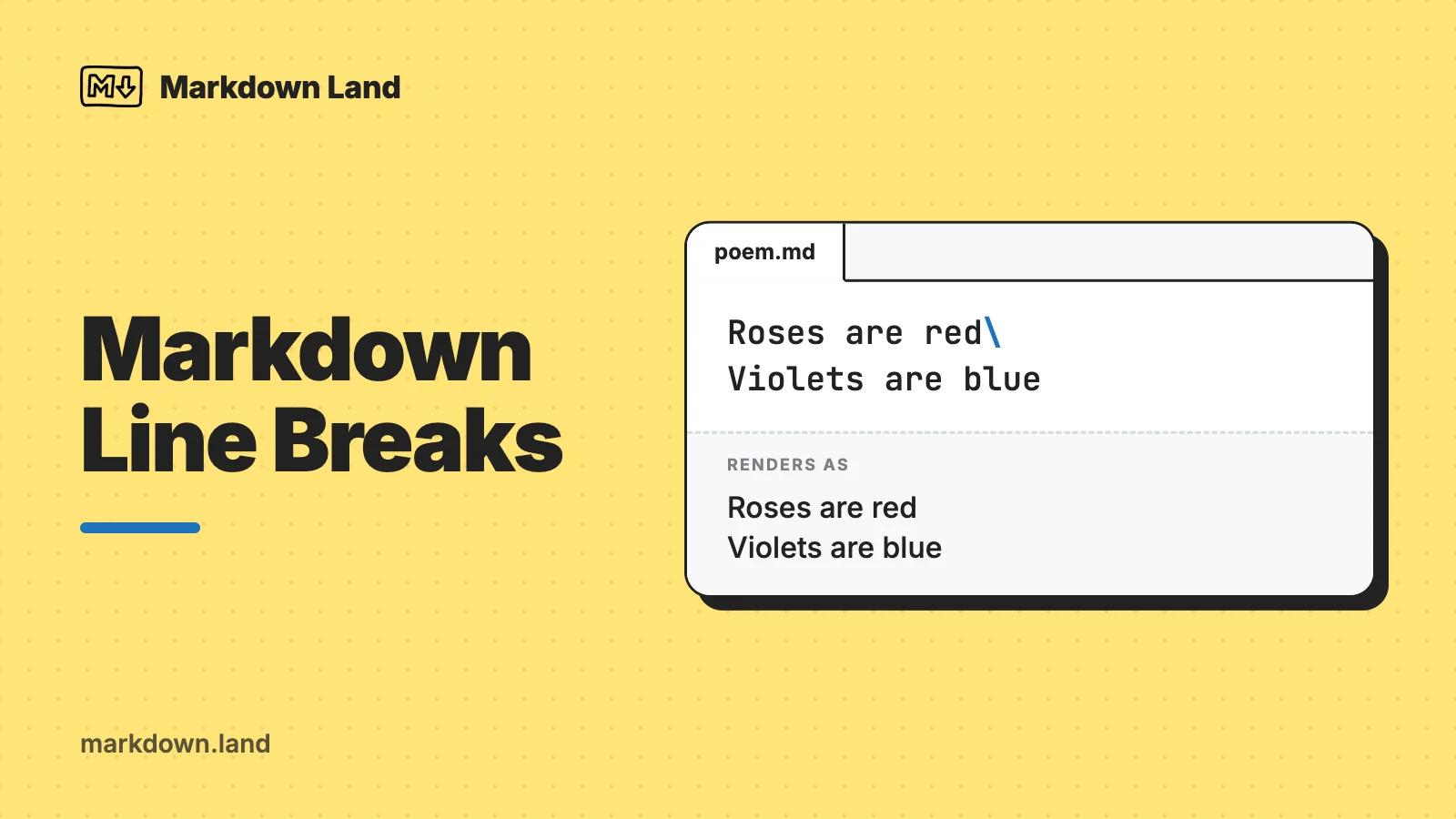
To add a line break in Markdown, end the line with a backslash \ or with two spaces, or put an HTML <br> tag where you want the break. To start a new paragraph instead, leave a blank line. Pressing Enter once does nothing in most Markdown renderers, which is why your lines run together.

Markdown Land\
Main Street 1\
Amsterdam

This is a new paragraph.
The result:
Markdown Land
Main Street 1
Amsterdam
This is a new paragraph.
That’s the short answer. The longer answer has a few surprises: GitHub treats Enter differently in comments than in README files, editors silently delete your trailing spaces, MkDocs ignores the backslash, and Pandoc drops <br> when you export to Word. I tested every example on this page with GitHub’s own Markdown renderer and with the libraries behind VS Code, Jupyter and MkDocs, and I converted them with Pandoc. You’ll find the results in the what works where table below.
Three ways to break a line
All three methods below produce the same HTML: a <br> inside the paragraph. The difference is in how robust they are.
1. A backslash at the end of the line
Roses are red\
Violets are blue
The result:
Roses are red
Violets are blue
This is my favorite. The backslash is a hard line break in the CommonMark spec, so it works on GitHub, GitLab, in VS Code, Jupyter, Pandoc, and anything else built on CommonMark or GitHub Flavored Markdown (GFM). You can see it in your source, and no editor will remove it behind your back.
Two things to know. The backslash only works between two lines of the same paragraph: on the last line of a paragraph, or in a heading, it shows up as a literal \. And Python-Markdown, the engine behind MkDocs, doesn’t support it at all. There, too, you’ll see the backslash in your output.
2. Two spaces at the end of the line
This is the original Markdown way. There are two spaces after “red” in this example, even though you can’t see them:
Roses are red Violets are blue
The result is the same as above. Trailing spaces work in every renderer I tested, including MkDocs. Two or more spaces work; one space doesn’t. The big downside is that they’re invisible: you can’t tell a line break from a missing one by looking at the file, and many editors strip trailing whitespace when you save. More on that below.
3. An HTML <br> tag
Roses are red<br>Violets are blue
Markdown passes HTML through, so a <br> tag becomes a line break wherever HTML is allowed: GitHub, GitLab, VS Code, Jupyter, Obsidian, and most static site generators. <br>, <br/> and <br /> all give the same result. Unlike the other two methods, <br> works in the middle of a line, which makes it the only option inside table cells and headings.
It doesn’t work where HTML is stripped, and Pandoc silently drops it when you convert to Word or PDF. I tested that: the backslash became a real line break in the .docx file, the <br> disappeared and the lines ran together.
Which one should you use?
| Method | Visible in source | Survives whitespace trimming | Works in table cells | Pandoc to Word/PDF |
|---|---|---|---|---|
Backslash \ | Yes | Yes | No | Yes |
| Two spaces | No | No | No | Yes |
<br> | Yes | Yes | Yes | No |
I use a backslash in normal text and <br> in tables and headings. I only use trailing spaces in MkDocs projects, where the backslash doesn’t work.
Line break vs. new paragraph
Markdown knows two kinds of “new line”:
- A new paragraph starts after a blank line. In HTML, that’s a new
<p>element, and browsers put some space between paragraphs. - A line break moves the text to the next line within the same paragraph, without the extra space. In HTML, that’s a
<br>. Use it for addresses, poems, song lyrics, or a signature.
A single Enter is neither. The CommonMark spec calls it a soft line break: the newline ends up in the HTML, and the browser displays it as a space. So this:
Roses are red
Violets are blue

Sugar is sweet
And so are you
Renders as two paragraphs of one line each:
Roses are red
Violets are blue
Sugar is sweet And so are you
That looks like a bug, but it’s on purpose. Markdown was designed to look like a plain-text email, where you wrap lines at around 80 characters by hand. Those line endings shouldn’t end up in the output: the text should reflow to fit the screen. Many people also write one sentence per line, because it makes Git diffs much easier to read. Thanks to soft line breaks, readers never see that.
Two related rules: trailing spaces at the end of a paragraph are ignored, and so are extra blank lines. Five blank lines give you the same single paragraph break as one blank line. The paragraphs section of my Markdown cheat sheet has the one-screen version of all this.
Where a single Enter does create a line break
Some platforms decided that ignoring Enter confuses people more than it helps them, and turn every newline into a line break. These are the ones you’re most likely to run into.
GitHub: comments vs. files
In issues, pull requests, and discussions, GitHub renders every newline as a line break. In a README.md or any other .md file, it follows the standard and ignores single newlines. GitHub’s documentation says so, and you can see it in GitHub’s Markdown API, which has two modes: markdown renders like a file, and gfm renders like a comment. I sent the same text to both:
Roses are red Violets are blue
- File mode (README.md):
<p>Roses are red Violets are blue</p>, one line. - Comment mode (issues, PRs):
<p>Roses are red<br>Violets are blue</p>, two lines.
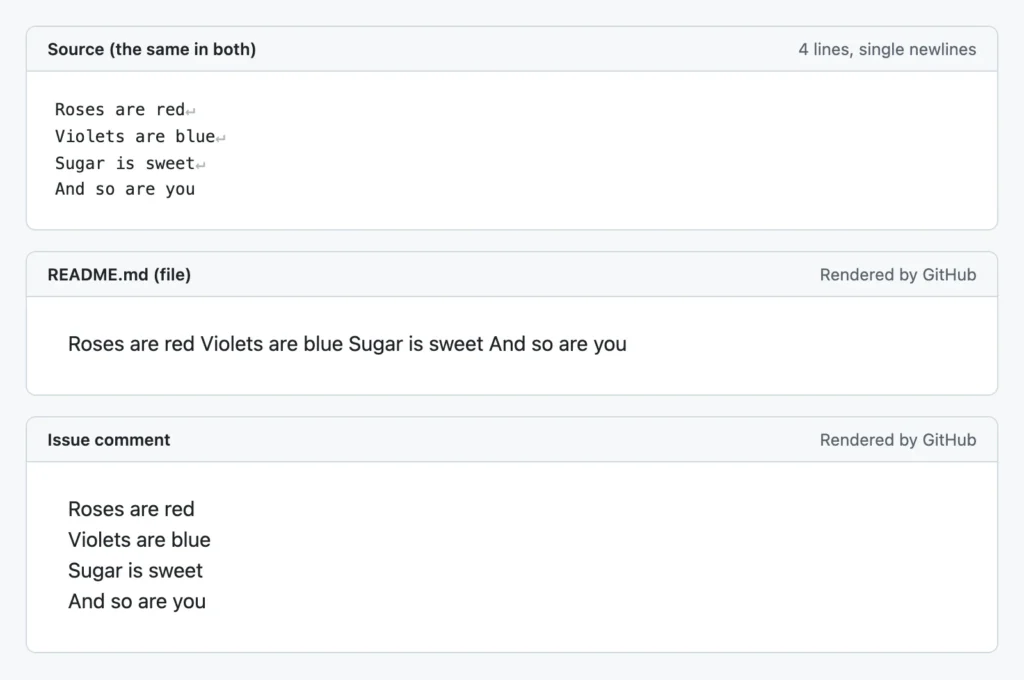
This is why text you copy from an issue into your README suddenly runs together. If text has to look right in both places, use backslashes: they give the same result in both modes.
One gotcha in comments: a <br> at the end of a line gives you two line breaks there, one from the tag and one from the newline. In comments, either put <br> in the middle of a line or just press Enter.
Obsidian
Obsidian has a setting for this: Strict line breaks, under Settings → Editor. According to the Obsidian docs, turning it on makes Reading view follow the Markdown standard (a single Enter is ignored), and turning it off makes single line breaks visible. If your notes look fine in Obsidian but run together on GitHub or in a static site, this setting is the reason. I haven’t tested Obsidian myself; this is from its documentation.
VS Code’s preview (optional)
VS Code’s built-in Markdown preview follows the standard, but it has a setting, markdown.preview.breaks, that turns every newline into a <br>. It’s off by default. I’d leave it off: it only changes the preview, so it hides problems that will show up as soon as you push your file to GitHub.
Chat apps
Chat apps like Slack aren’t Markdown documents. Enter sends your message, and Slack’s help says to use Shift+Enter to start a new line, which then shows up as a new line. No backslashes or spaces needed.
Platforms that do not turn Enter into a line break: GitLab (its Markdown docs describe the standard behavior, with no exception for comments), Jupyter notebooks, MkDocs, Pandoc, and almost every static site generator.
Adding blank lines and extra space
Because extra blank lines collapse into one paragraph break, you need a trick to add more vertical space. These work on GitHub (I tested them in both file and comment mode) and in every other renderer that allows HTML:
First paragraph. <br> <br> Second paragraph, with two extra empty lines above it. Third paragraph, with one empty paragraph above it.
<br>on its own lines, with a blank line before and after the group: each<br>adds one empty line. Add as many as you need. on its own line: a paragraph that contains only a non-breaking space. The renderer can’t collapse it, so you get an empty paragraph, including the usual space around paragraphs.<br><br>inside a line:Line one<br><br>Line twogives you an empty line between two lines of the same paragraph.
What doesn’t work: a line with only a backslash (you’ll see the backslash), and lines with only spaces (they count as blank lines). And keep the blank line between your text and the <br> lines: if the <br> lines come straight after your text, they become part of that paragraph, and in GitHub comments each one then counts double.
Before you add spacing, ask yourself if you really need it. Extra space in a README usually means a new section, and a heading or a horizontal rule (---) says that more clearly.
Line breaks in tables, lists, blockquotes and headings
Tables
Every table row has to fit on one line of Markdown, so Enter ends the row, and a backslash or trailing spaces can’t help you. Use <br>, and <br><br> for an empty line within a cell:
| Name | Address                          |
|------|----------------------------------|
| Erik | Main Street 1<br>1234 AB Amsterdam |
The result:
| Name | Address |
|---|---|
| Erik | Main Street 1 1234 AB Amsterdam |
This works on GitHub, GitLab, and anywhere else that renders tables and allows HTML. My Markdown table article has more workarounds, like lists inside cells.
Lists
Inside a list item, line breaks work as in a normal paragraph. Indent the next line so it lines up with the text of the item (two spaces for -, three for 1.), and end the line before it with a backslash:
1. Roses are red\
   Violets are blue
2. Sugar is sweet

   This is a second paragraph in item 2.
3. And so are you
The result:
Roses are red
Violets are blueSugar is sweet
This is a second paragraph in item 2.
And so are you
For a new paragraph inside an item, leave a blank line and indent the paragraph the same way. The numbering continues, as long as you keep the indentation. Without it, the paragraph ends the list.
A line that isn’t indented at all still belongs to the item, as long as there’s no blank line in between. The spec calls that a “lazy continuation line”. It’s handy when you’re typing fast, but I always indent, because it’s clearer to the next person who reads the file.
One side effect you can see in the example: as soon as one item contains a blank line, the whole list becomes a “loose” list, and every item gets paragraph spacing. If you want a compact list, use line breaks inside your items instead of blank lines.
Blockquotes and GitHub alerts
Every line of a blockquote starts with >, but that doesn’t make it a new line in the output. Consecutive > lines are joined into one paragraph, just like normal text. Use a backslash for a line break, and a line with only > for a new paragraph:
> Roses are red\
> Violets are blue
>
> Sugar is sweet
The result:
Roses are red
Violets are blueSugar is sweet
The same goes for GitHub alerts like > [!NOTE], which are blockquotes too. In a README, the lines of your note are joined unless you add backslashes or blank > lines.
Headings
A heading is always one line of Markdown. A backslash at the end shows up as a literal \, and the next line becomes a normal paragraph. If you want a heading over two lines, use <br>: # My project<br>does one thing well. GitHub renders that as a two-line <h1>.
Images
Images are inline elements, so two images on consecutive lines end up side by side, with a space between them. That’s great for a row of badges. To stack them, end the first line with a backslash, or put a blank line between them. My article on Markdown images covers sizing and alignment too.
Why your trailing spaces disappear
If your line breaks worked yesterday and are gone today, your editor probably removed the trailing spaces. Many editors and setups trim trailing whitespace on save, because in code it’s just noise. In VS Code, that’s the files.trimTrailingWhitespace setting. It’s off by default, but many people turn it on, and an .editorconfig file with trim_trailing_whitespace = true does the same thing for everyone working on a project.
The VS Code Markdown docs suggest keeping trailing whitespace in Markdown files only. Add this to your settings.json:
{
  "[markdown]": {
    "files.trimTrailingWhitespace": false
  }
}
For EditorConfig, add a [*.md] section with trim_trailing_whitespace = false. Prettier, for what it’s worth, left both trailing spaces and backslashes alone when I ran it on my test file.
Or skip the whole problem and use a backslash. It’s visible, it survives every editor and formatter, and it works in the same places as trailing spaces, except MkDocs. That’s why it’s my default.
What works where
Here’s how the common platforms handle each kind of line ending:
| Platform | Enter once | Two spaces | Backslash | <br> |
|---|---|---|---|---|
| GitHub .md files (README, docs) | Ignored | Line break | Line break | Line break |
| GitHub issues, PRs, discussions | Line break | Line break | Line break | Line break (two if followed by Enter) |
| GitLab | Ignored | Line break | Line break | Line break |
| VS Code preview | Ignored (unless markdown.preview.breaks is on) | Line break | Line break | Line break |
| Jupyter (JupyterLab, Notebook 7) | Ignored | Line break | Line break | Line break |
| Obsidian | Depends on Strict line breaks | Line break | Not documented | Line break |
| MkDocs (Python-Markdown) | Ignored | Line break | Literal \ | Line break |
| Pandoc to HTML | Ignored | Line break | Line break | Line break |
| Pandoc to Word or PDF | Ignored | Line break | Line break | Dropped |
How I checked: GitHub with its own Markdown API, in both file mode and comment mode. VS Code’s preview is built on markdown-it, and Jupyter renders Markdown cells with the marked library (I looked up JupyterLab’s settings in its source code), so I tested those two libraries with the same settings. MkDocs uses Python-Markdown, which I ran directly, and I converted the test file with Pandoc to HTML, LaTeX and Word. I also ran everything through commonmark.js, the CommonMark reference implementation. GitLab and Obsidian are based on their documentation.
If you write a README for GitHub, the README.md guide covers the rest of what makes a good one.
Page breaks when exporting to PDF or Word
Markdown has no syntax for a page break; it was made for the web, which has no pages. What you need depends on the tool that makes your PDF or Word file.
Pandoc to PDF: \newpage
Pandoc creates PDFs with LaTeX by default, and its own Markdown dialect passes raw LaTeX through to it. So put \newpage on its own line, with blank lines around it:
# Chapter 1

Some text.

\newpage

# Chapter 2
In my test, \newpage ended up in the LaTeX output as a command, and Pandoc quietly left it out of the HTML and Word output. It only works with Pandoc’s default Markdown input: with -f gfm, Pandoc escaped it and printed the text “\newpage” instead.
Pandoc to Word: a raw OpenXML block
For a .docx file, Pandoc lets you insert a piece of raw Word XML with a raw attribute. This one is a page break:
```{=openxml}
<w:p><w:r><w:br w:type="page"/></w:r></w:p>
```
I checked the generated .docx, and the page break is in there. Like \newpage, this block is ignored for other output formats, so if you export to both PDF and Word, you can use both.
HTML to PDF: a CSS page break
Many tools make a PDF by rendering your Markdown to HTML and printing it with a browser engine. For those, and for printing from your browser, add an empty div with the CSS break-after property:
# Chapter 1

Some text.

<div style="break-after: page"></div>

# Chapter 2
The older page-break-after: always does the same, and you’ll see it in a lot of tutorials. I rendered both versions with markdown-it and printed them to PDF with headless Chrome: two pages each, against one page without the div. Of course, this needs a renderer that allows HTML with style attributes. GitHub strips style, but GitHub doesn’t print pages anyway.
Frequently asked questions
How do I add a new line in Markdown without trailing spaces?
End the line with a backslash \, or use <br>. Both are visible in your source and work on GitHub, GitLab, VS Code, and Jupyter. The backslash doesn’t work in MkDocs, and <br> doesn’t survive Pandoc’s conversion to Word or PDF.
Why is my Markdown line break not working?
The usual suspects: you used one trailing space instead of two, your editor removed the trailing spaces on save, the backslash is on the last line of a paragraph (it only works between two lines), you’re in a table cell (only <br> works there), or you’re using MkDocs, which doesn’t support the backslash. If it works in a GitHub comment but not in your README, that’s the comments-vs-files difference.
How do I add a line break in a Jupyter Notebook Markdown cell?
The same way as anywhere else: a backslash, two trailing spaces, or <br> at the end of the line. A single Enter is ignored, and a blank line starts a new paragraph.
Can I make every Enter a line break?
In some tools, yes. Obsidian has the Strict line breaks setting, VS Code’s preview has markdown.preview.breaks, markdown-it has a breaks option, Python-Markdown has the nl2br extension, and Pandoc has the hard_line_breaks extension (-f markdown+hard_line_breaks). The catch is that your files then only look right in that one tool. On GitHub, a README still needs real line breaks.
Should I use <br>, <br/> or <br />?
It doesn’t matter. All Markdown renderers I tested treat them the same, and in HTML they mean the same thing. I use <br> because it’s the shortest. See MDN on the br element if you’re curious.
Conclusion
A blank line starts a new paragraph, a backslash at the end of a line gives you a line break, and <br> covers the places where a backslash can’t go, like table cells. Keep in mind that GitHub comments and Obsidian may show line breaks where your README won’t. For the rest of the syntax, keep my Markdown cheat sheet handy, and if you’re new to all this, start with what an .md file is and how to open one.