To create a link in Markdown, put the link text in square brackets and the URL right after it in parentheses: [link text](https://example.com). There’s no space between the ] and the (. The same syntax links to a heading on the same page ([text](#heading-id)) and to another file ([text](docs/install.md)).
Keep my [Markdown cheat sheet](https://markdown.land/markdown-cheat-sheet) open while you write.
The result:
Keep my Markdown cheat sheet open while you write.
That covers most links you’ll ever write. The questions start when you want to link to a section, to another file in your repository, or open a link in a new tab. Those depend on where your Markdown ends up, because GitHub, GitLab, Obsidian, MkDocs and Pandoc each do things a little differently. I ran every example on this page through GitHub’s own Markdown renderer, and the heading and new-tab examples also through Pandoc, Python-Markdown (the engine behind MkDocs) and kramdown (the engine behind Jekyll and GitHub Pages). Where I couldn’t test something, I say so.

Inline links
The inline link from the intro is the one you’ll use most. The link text can contain other Markdown, like bold text or inline code, and you can add an optional title in quotes after the URL:
Learn the basics in my [Markdown introduction](https://markdown.land/ "Start here").

Make a [**bold** link](https://markdown.land/markdown-table) or one with [`code`](https://markdown.land/markdown-code-block).
The result (hover over the first link to see the title):
Learn the basics in my Markdown introduction.
Make a bold link or one with code.
The title becomes the HTML title attribute, which most browsers show as a tooltip. You can wrap it in double quotes, single quotes, or parentheses. I rarely use titles: they don’t show on phones, and screen readers don’t reliably announce them. Put anything important in the link text itself.
To turn an image into a link, put the image syntax inside the link text: [](https://example.com). My Markdown images guide covers that and the rest of the image syntax.
Reference-style links
With long URLs, inline links make your source hard to read. Reference-style links solve that: you give the link a label in the text, and define the URL somewhere else in the document, usually at the bottom.
I wrote guides about [tables][1], [code blocks][code] and the [cheat sheet][].
Or just use the label as the text: [README files].

[1]: https://markdown.land/markdown-table
[code]: https://markdown.land/markdown-code-block "Code blocks in Markdown"
[cheat sheet]: https://markdown.land/markdown-cheat-sheet
[readme files]: https://markdown.land/readme-md
The result:
I wrote guides about tables, code blocks and the cheat sheet. Or just use the label as the text: README files.
That example shows all three forms: [text][label] (full), [text][] (collapsed) and [text] (shortcut). A few rules I confirmed on GitHub:
- Labels are case-insensitive:
[README files]matches[readme files]:. - The definitions don’t show up in the output, so the bottom of your document stays clean.
- If a label has no definition, there’s no link. The brackets and text show up as typed.
- A title can go on the line below the URL. A URL with spaces can go in angle brackets:
[label]: <my file.md>.
Because a definition without a reference renders nothing at all, people abuse it to write hidden comments: [//]: # (This text is hidden). I explain that trick, and its pitfalls, in my article on comments in Markdown.
Autolinks and bare URLs
If you want the URL itself as the link text, wrap it in angle brackets. That’s an autolink in the CommonMark spec, so it works in every renderer. It also works for email addresses:
<https://markdown.land/markdown-cheat-sheet>
<[email protected]>
The first becomes a clickable URL, the second a mailto: link. GitHub Flavored Markdown goes further: it also links bare URLs without the brackets. In my tests on GitHub, these became links:
- Anything starting with
http://orhttps://, includinghttp://localhost:3000 - Anything starting with
www.(GitHub addshttp://to the link) - Email addresses like
[email protected]
A plain domain like example.com did not become a link. GitHub is also smart about the end of a URL: a period or comma right after it isn’t included, and a closing parenthesis is only included when the URL has a matching opening one. The exact rules are in the GFM spec’s autolinks extension.
Bare URLs are an extension, though, not core Markdown. Pandoc’s default Markdown and kramdown (Jekyll, GitHub Pages) left them as plain text in my tests, while markdown-it with its linkify option turned on went the other way and even linked example.com and file.md. If a URL must be clickable everywhere, use the angle brackets.
How to show a URL without making it a link
Put it in inline code: `https://example.com`. That’s the only method that worked on GitHub. Escaping with a backslash (https\://example.com or www\.example.com) did nothing: GitHub still turned both into links. Wrapping the URL in a <span> didn’t help either.
Link to a heading in the same document
Most renderers give each heading an id, which you can link to with a #. On GitHub, the id is the heading text in lowercase, with spaces turned into hyphens and punctuation removed:
See [Step 1: Install the CLI](#step-1-install-the-cli) before you continue.

...

## Step 1: Install the CLI
Here’s that in action on this page: jump to the section on relative links. You can also link to a heading in another file by adding the anchor to the path: [Setup](docs/install.md#setup).
The basic rule is simple, but real headings contain question marks, emoji, code and accented letters. I sent all of these through GitHub’s renderer and copied the ids it generated:
| Heading | Link on GitHub | What happened |
|---|---|---|
## What's new in v2.0? | #whats-new-in-v20 | Apostrophe, dot and question mark removed |
## Step 1: Install the CLI | #step-1-install-the-cli | Colon removed |
## Installation (second one) | #installation-1 | Duplicates get -1, -2, … |
## 🚀 Quick start | #-quick-start | Emoji removed, its space became a leading hyphen |
## C++ / C# notes | #c--c-notes | Symbols removed, every space still became a hyphen |
## Über uns & café | #über-uns--café | Accented letters kept |
## 中文标题 | #中文标题 | Non-Latin letters kept |
## `config.yaml` options | #configyaml-options | Formatting dropped, then the dot |
## snake_case_name | #snake_case_name | Underscores kept |
## Emoji :rocket: shortcode | #emoji-rocket-shortcode | The shortcode text counts, not the emoji |
The pattern: every space becomes a hyphen, and everything that isn’t a letter, number, hyphen or underscore disappears. That’s why you get double hyphens where a symbol sat between two spaces, and a leading hyphen when a heading starts with an emoji. That matches the rules in GitHub’s documentation. Write the anchor in lowercase, exactly as GitHub generates it.
The easiest way to get it right: open the rendered file on GitHub, hover over the heading, and click the link icon that appears next to it. The URL in your address bar now ends with the correct anchor. In VS Code, type ](# and the editor suggests the headings of the current file.
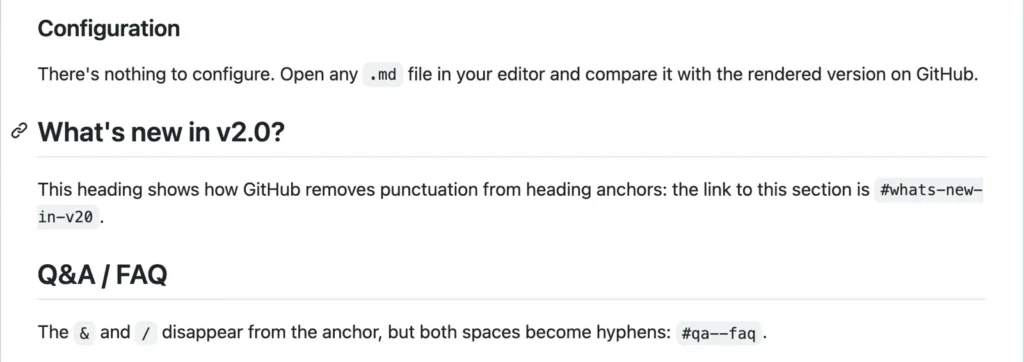
One catch I found while testing: GitHub only adds heading anchors in files, like a README or any other .md file in a repository. In issues, pull requests and comments, headings don’t get an id, so links to them go nowhere.
Heading anchors on other platforms
Every Markdown tool has its own slug rules. For simple headings like “Getting started” they all agree. For the tricky ones, here’s what I got:
| Heading | GitHub, kramdown (Jekyll) | Pandoc (-f markdown) | Python-Markdown (MkDocs) |
|---|---|---|---|
What's new in v2.0? | whats-new-in-v20 | whats-new-in-v2.0 | whats-new-in-v20 |
🚀 Quick start | -quick-start | quick-start | quick-start |
Über uns & café | über-uns--café | über-uns-café | uber-uns-cafe |
Installation (second) | installation-1 | installation-1 | installation_1 |
2024-01-01 release | 2024-01-01-release | release | 2024-01-01-release |
中文标题 | 中文标题 | 中文标题 | _1 |
Some notes on that table:
- GitHub Pages builds with Jekyll, which uses kramdown with its GFM parser by default, so its anchors matched GitHub’s in every case I tried.
- Pandoc drops leading numbers from ids in its own Markdown flavor. With
-f gfmit mostly follows GitHub’s rules instead, but it turns emoji into their names (rocket-quick-start). - MkDocs collapses double hyphens, strips accents, uses an underscore for duplicates, and turns headings without Latin letters into
_1,_2, and so on. If you write in Chinese, Russian or Japanese, configure a differentslugifyfunction for the toc extension. - GitLab documents the same rules as GitHub: lowercase, spaces to hyphens, everything except letters, numbers, hyphens and underscores removed, and
-1,-2for duplicates. I didn’t test it, but going by the GitLab Markdown docs, links that work on GitHub should work there too. - Obsidian doesn’t use slugs at all. You link to the heading text itself, see wikilinks below.
If your document has to work in more than one of these, keep headings plain: letters, numbers and spaces, no emoji, and no two headings with the same text.
Custom anchors
Sometimes you want a short, stable anchor that doesn’t change when someone edits the heading text, or an anchor in the middle of a paragraph. On GitHub, add an empty HTML anchor tag and link to its name:
<a name="install"></a>
## Installing on Windows, macOS and Linux

...

Jump to the [install instructions](#install).
GitHub keeps name and id attributes but prefixes them with user-content- in the HTML, to avoid clashes with its own page. You still link to the plain name, as GitHub’s docs show. Custom anchors don’t appear in GitHub’s automatic outline.
Pandoc, kramdown and Python-Markdown (with the attr_list extension, which MkDocs Material users usually have on) support a cleaner syntax: ## Installing on Windows {#install}. GitHub doesn’t. In my test it showed {#install} as part of the heading, and the id became installing-on-windows-install.
Link to another Markdown file (relative links)
To link to another file in the same repository or project, use a relative path instead of a full URL:
[Contributing guide](CONTRIBUTING.md)
[Install docs](docs/install.md)
[Setup section](docs/install.md#setup)
[Back to the README](../README.md)
[License, from the repository root](/LICENSE)
[The docs folder](docs/)
The path is relative to the file that contains the link, just like on a website. ../ goes up one folder. On GitHub, a path starting with / starts at the root of the repository, and a link to a folder shows that folder’s file listing. GitHub also points relative links at whatever branch you’re viewing, so they keep working in forks, on other branches, and in local clones. Links you write as https://github.com/you/repo/blob/main/... don’t: they always go to main on github.com. That’s why I use relative links in every README.md I write.
Two details that trip people up:
- Spaces in file names.
[Notes](my notes.md)isn’t a link at all; GitHub showed it as plain text. Writemy%20notes.mdor put the path in angle brackets:[Notes](<my notes.md>). Both produce the same link. - Case. GitHub’s file paths are case-sensitive.
readme.mdandREADME.mdare different files, even if your Mac or Windows laptop treats them as the same.
Relative links outside GitHub
A link to install.md works on GitHub because GitHub renders that file. When you publish the same Markdown as a website, install.md becomes something like /install/ or install.html, and the link has to change with it. Here’s how the common tools handle that:
- GitHub Pages runs the
jekyll-relative-linksplugin, which converts links to.mdfiles into links to the generated pages. It’s on by default and can’t be disabled, according to the GitHub Pages docs. - MkDocs rewrites relative
.mdlinks to the right URLs while building, and leaves the#anchorpart alone. It can’t fix links inside raw HTML, and absolute paths aren’t officially supported (see the MkDocs docs). - GitLab handles relative links in repositories like GitHub does. Its wikis live in a separate repository, though, so you can’t link from a wiki page to a project file with a relative path, or the other way around.
- Pandoc leaves links as they are. If you convert
a.mdandb.mdto HTML, a link tob.mdstill points tob.md, so link tob.htmlor rewrite the links with a filter. - Anywhere your README is shown outside its repository, like a package registry or a project website that only copies the README, relative links have nothing to point to. Use full URLs there.
For local files on your own computer, relative links work in VS Code’s preview and in editors like Obsidian and Typora. If you have a stray .md file and wonder what opens it, I wrote a guide on what an .md file is and how to open one. VS Code can also check your links: set "markdown.validate.enabled": true and it warns about links to files and headings that don’t exist. With markdown.updateLinksOnFileMove.enabled set to prompt or always, it updates links when you rename or move a file. Both are off by default; the VS Code Markdown docs list all the options.
Wikilinks in Obsidian and wikis
Obsidian and some other note apps use wikilinks: the name of a note in double square brackets. It’s not part of standard Markdown. I tested [[Some Page]] on GitHub, and it simply shows the brackets. The syntax below comes from Obsidian’s help on internal links:
[[Three laws of motion]]                 a note
[[Three laws of motion|the three laws]]  a note, with your own link text
[[Projects/Three laws of motion]]        a note in a folder
[[Three laws of motion#Second law]]      a heading in another note
[[#Second law]]                          a heading in this note
[[Three laws of motion#^37066d]]         a block (paragraph, list item)
![[Three laws of motion]]                embed the note instead of linking
You link to a heading by its text, not a slug, so #Second law stays readable. Obsidian also understands normal Markdown links, as long as you URL-encode spaces: [Three laws](Three%20laws%20of%20motion.md). If you want your notes to render correctly on GitHub or in a static site later, turn off Settings → Files and links → Use [[Wikilinks]]. Obsidian then inserts standard Markdown links, even when you type [[ to pick a note. Block links (#^) only work inside Obsidian.
GitLab wikis also support [[Home]] and [[Page title|page-slug]], according to GitLab’s docs.
Open a link in a new tab
Standard Markdown has no syntax for this. A Markdown link is always a plain <a href>, and the browser opens it in the same tab. You have three options, depending on where your Markdown is rendered.
1. Use an HTML link. Most renderers let HTML through:
<a href="https://markdown.land/markdown-cheat-sheet" target="_blank" rel="noopener">Markdown cheat sheet</a>
This doesn’t work on GitHub. Its sanitizer removed the target attribute in my test and kept only the href, so the link opens in the same tab. GitHub also adds rel="nofollow" to external links. On GitHub, there’s no way to force a new tab; readers can Ctrl+click (Cmd+click on a Mac) if they want one.
2. Use your renderer’s attribute syntax. Several Markdown processors let you add HTML attributes in curly braces right after the link. I tested these:
kramdown (Jekyll, GitHub Pages):
[Cheat sheet](https://markdown.land/markdown-cheat-sheet){:target="_blank" rel="noopener"}

Pandoc:
[Cheat sheet](https://markdown.land/markdown-cheat-sheet){target="_blank"}

Python-Markdown with attr_list (MkDocs) accepts either form:
[Cheat sheet](https://markdown.land/markdown-cheat-sheet){target=_blank}
All three produced target="_blank" in the HTML. On GitHub, the curly braces just show up as text after the link.
3. Let your site do it. If you publish Markdown on a website, it’s usually cleaner to open all external links in a new tab with a template setting, a render hook (Hugo has one for links), or a few lines of JavaScript. In WordPress, the link popup in the editor has an “Open in new tab” toggle; my WordPress Markdown guide covers writing in Markdown there.
Should you, though? Many readers prefer to decide for themselves, and a tab that opens unexpectedly can confuse people using screen readers. I only force a new tab when leaving the page would interrupt something, like a form someone is filling in. About rel="noopener": modern browsers already apply it to target="_blank" links (see MDN on noopener), but adding it doesn’t hurt.
Special characters in links
URLs and link text don’t always behave. These are the cases I tested on GitHub. For spaces, parentheses and brackets, I also checked commonmark.js and markdown-it, and they gave the same results:
| Problem | Doesn’t work | Works |
|---|---|---|
| Space in the URL | [Notes](my notes.md) | [Notes](<my notes.md>) or [Notes](my%20notes.md) |
| Parentheses in the URL | [Link](https://example.com/a(b) | Balanced pairs are fine: [Markdown](https://en.wikipedia.org/wiki/Markdown_(disambiguation)). Otherwise escape: a\(b or a%28b |
| Brackets in the link text | [a ] b](https://example.com) | Balanced pairs are fine: [a [b] c](…). Otherwise escape: [a \] b](…) |
| Pipe in a table cell | | [a|b](…) | | | [a\|b](…) | |
Space between ] and ( | [text] (https://example.com) | [text](https://example.com) |
| Quote inside a title | "Say "hi"" | "Say \"hi\"" or 'Say "hi"' |
Python-Markdown and Pandoc’s default Markdown are more forgiving and accept a URL with spaces as is, but CommonMark doesn’t, so I’d always encode spaces. If you put links inside tables a lot, my Markdown table guide shows the other cell-specific gotchas. For a general overview of backslash escapes, see the escaping section of my cheat sheet.
One more rule from the CommonMark spec: links can’t contain other links. If you put a bare URL inside link text, you’ll get one link, not two.
Links in Discord and Slack
Chat apps use their own Markdown dialects. I couldn’t test these apps for this article, so this is from their official documentation:
- Discord supports normal Markdown links, which it calls masked links:
[link text](https://example.com). - Slack doesn’t use the Markdown link syntax when you type a message. Select some text and press Ctrl+Shift+U (Cmd+Shift+U on a Mac), or paste a URL while text is selected, and Slack turns the selection into a link (see Slack’s keyboard shortcuts).
- Slack apps and bots that post through the API use Slack’s mrkdwn format, where a link looks like
<https://example.com|link text>, URL first. That’s the syntax you see in Slack’s developer docs, and it doesn’t work in the message box.
Writing good link text
Screen reader users often jump from link to link, hearing only the link text. A page full of “click here” and “this link” tells them nothing. Search engines also use link text to understand what the linked page is about. So:
- Describe the destination:
[GitHub's Markdown docs](…), not[here](…). - Keep it short, a few words that would make sense on their own.
- Don’t use a long raw URL as link text in prose. It’s hard to read and screen readers spell it out.
- Mention it in the link text when it points to a file download, like a PDF.
The W3C explains the reasoning in its guidance on link purpose.
Why is my Markdown link not working?
Go through this list when a link shows up as plain text or goes to the wrong place:
- The brackets show up as text: check for a space between
]and(, a space in the URL, or an unbalanced(,),[or]. - A link to a heading does nothing: compare your anchor with the one the platform generated (hover the heading on GitHub). Look for missing double hyphens, a leading hyphen from an emoji, uppercase letters, or a
-1suffix for a duplicate heading. On GitHub, also check that you’re in a file and not in an issue or comment. - A relative link works on GitHub but not on your site: your site generator needs to convert
.mdlinks (see relative links outside GitHub). Also check upper and lower case in file names. - A reference link shows as text: the label has no definition, or there’s a typo in it. Labels are case-insensitive, but spaces and punctuation count.
- A bare URL isn’t clickable: your renderer doesn’t support GFM autolinks. Wrap it in
<and>. - A link opens in the same tab despite
target="_blank": the platform strips the attribute, as GitHub does. - The link is inside a code block or inline code: nothing inside backticks is parsed, by design. My code block guide explains why.
Frequently asked questions
How do I add a link in Markdown?
Write the link text in square brackets, followed directly by the URL in parentheses: [Markdown Land](https://markdown.land/). For a clickable URL without separate link text, wrap it in angle brackets: <https://markdown.land/>.
How do I link to a section of the same page?
Use the heading’s anchor as the URL: [Installation](#installation). On GitHub, the anchor is the heading text in lowercase, with spaces replaced by hyphens and punctuation removed. Hover over the heading on GitHub and click the link icon to get the exact anchor.
How do I link to another Markdown file?
Use a path relative to the current file: [Install guide](docs/install.md), or [README](../README.md) to go up a folder. Add an anchor to jump to a heading in that file: docs/install.md#setup. GitHub, GitLab, GitHub Pages and MkDocs all handle these.
How do I make a Markdown link open in a new tab?
Pure Markdown can’t. Use an HTML link with target="_blank", or an attribute syntax like {:target="_blank"} (kramdown) or {target="_blank"} (Pandoc, MkDocs with attr_list). GitHub removes target, so on GitHub, links always open in the same tab.
What’s the difference between an inline link and a reference link?
Only the source looks different. [text](url) keeps the URL in the sentence, [text][label] moves it to a definition elsewhere in the file. The HTML output is identical. Reference links are handy for long URLs or a URL you use several times.
Conclusion
Use [text](url) for almost everything, <url> when the URL should be the text, and reference links when long URLs clutter your source. Link to headings with #anchor, but check how your platform builds anchors, and use relative paths to link between files in a repository. Opening links in a new tab needs HTML or an attribute extension, and GitHub won’t allow it at all. For the rest of the syntax, my Markdown cheat sheet has a one-screen overview.