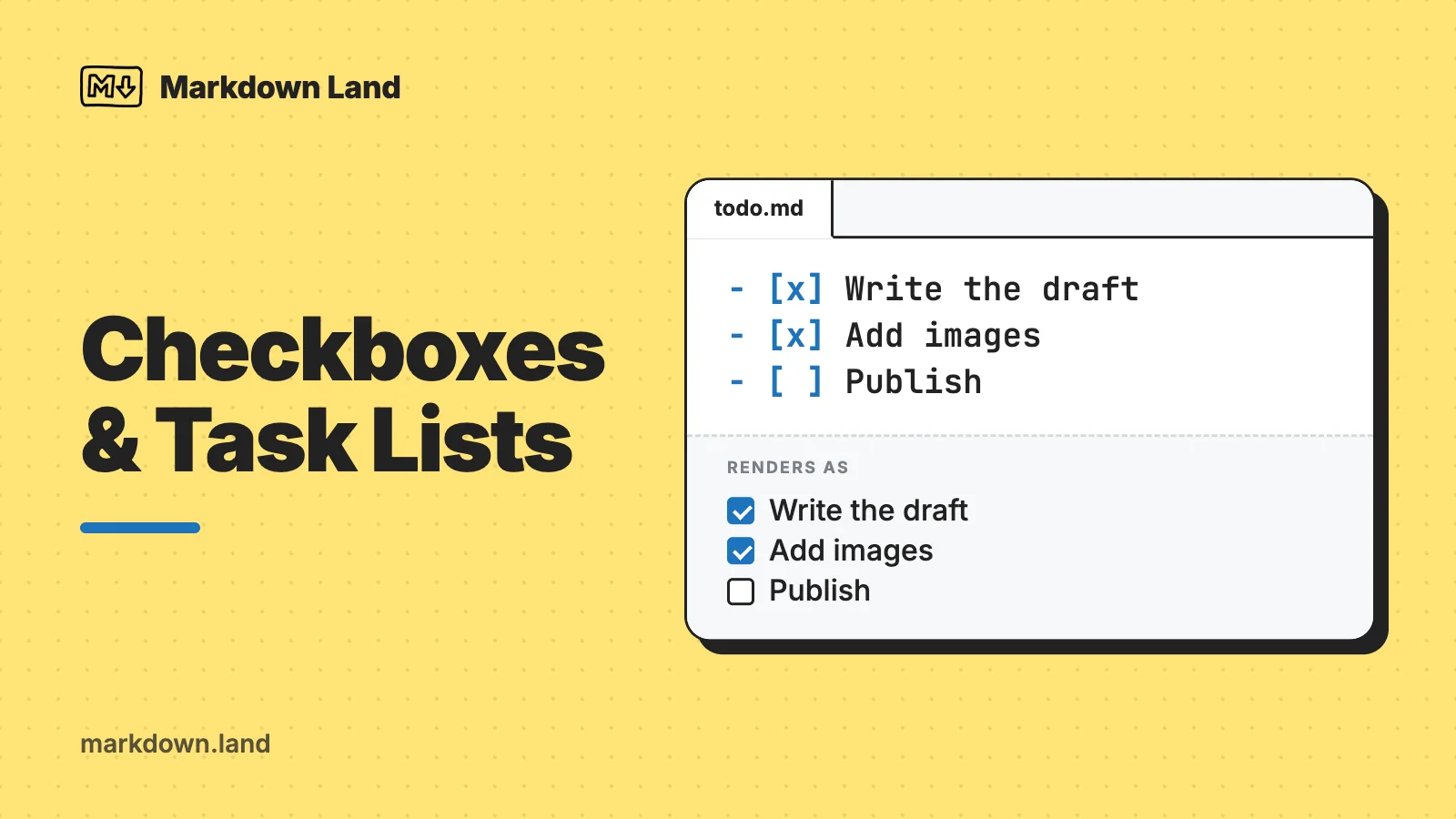
To make a checkbox in Markdown, start a list item with - [ ] for an empty box or - [x] for a checked one. Put a space between the dash and the brackets, one character inside the brackets, and a space plus some text after them:
- [x] Write the draft
- [ ] Add screenshots
- [ ] Publish
The result:
- Write the draft
- Add screenshots
- Publish
This is called a task list (or checklist). It’s part of GitHub Flavored Markdown (GFM), not of basic Markdown, so it works on GitHub, GitLab, in Obsidian, Jupyter, and Pandoc, but not everywhere. VS Code’s built-in preview, for example, shows the brackets as plain text.
The syntax is the easy part. The questions I see most are about everything around it: why a checkbox inside a table doesn’t work, how to get a check mark like ✅ instead, and which apps let you actually click the boxes. I ran every example on this page through GitHub’s own Markdown renderer and through Pandoc, marked (the library Jupyter uses), markdown-it (the one behind VS Code’s preview), and Python-Markdown (MkDocs). Where I couldn’t test something myself, I say so.
Task list syntax
A task is a normal Markdown list item that starts with a task marker: an opening bracket, one character, and a closing bracket. A space means unchecked. An x means checked, and uppercase X works too:
- [ ] Unchecked
- [x] Checked
- [X] Also checked
- Unchecked
- Checked
- Also checked
You can use any list marker. * and + work just like -, and numbered lists can be task lists too:
1. [x] Back up the database
2. [ ] Run the migration
3. [ ] Check the logs
- Back up the database
- Run the migration
- Check the logs
GitHub renders numbered task lists fine. Pandoc’s gfm reader is the exception I found: it ignores the boxes in numbered lists (more in the Pandoc section). If your file has to work everywhere, stick to -.
Nested task lists
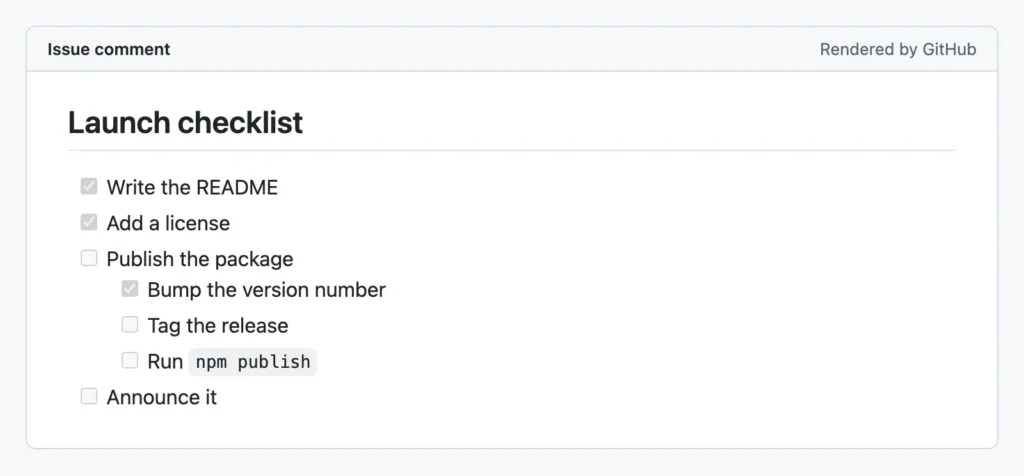
Indent a task to make it a subtask. Line it up with the text of the parent item, which means two spaces under - . Four spaces also works:
- [ ] Launch the website
  - [x] Buy the domain
  - [ ] Write the About page
    - [ ] Find a photo
- [x] Tell my mom
- Launch the website
- Buy the domain
- Write the About page
- Find a photo
- Tell my mom
Checking all the subtasks doesn’t check the parent. Every box is independent, so you tick the parent yourself.
And this is how GitHub renders a nested task list:
Mixing tasks, plain items, and formatting
Not every item in the list has to be a task. Items without brackets stay normal bullets. After the marker, you can use any inline formatting, including links, code, and strikethrough. A crossed-out done item is a nice touch:
- [x] ~~Install Node.js~~
- [ ] Run `npm install`
- [ ] Read the [contributing guide](CONTRIBUTING.md)
- Questions? Ask in the chat.
-
Install Node.js - Run
npm install - Read the contributing guide
- • Questions? Ask in the chat.
Rules that trip people up (tested on GitHub)
When a checkbox doesn’t show up, it’s almost always a small spacing problem. I sent each of these variations through GitHub’s Markdown API in October 2026:
| What I tried | Source | Result on GitHub |
|---|---|---|
| Standard syntax | - [ ] Task, - [x] Task | ✅ Checkbox |
| Uppercase X | - [X] Task | ✅ Checked box |
| Other list markers | * [ ], + [ ], 1. [ ], 1) [ ] | ✅ Checkbox |
Inside a blockquote or <details> | > - [ ] Task | ✅ Checkbox |
| No text after the box | - [ ] | ❌ Literal [ ] |
| Nothing between the brackets | - [] Task | ❌ Literal text |
| Two spaces between the brackets | - [ ] Task | ❌ Literal text |
| Spaces around the x | - [ x ] Task | ❌ Literal text |
| No space after the box | - [ ]Task | ❌ Literal text |
| No space after the dash | -[ ] Task | ❌ Not even a list |
| Not in a list | [ ] Task | ❌ Literal text |
| Other characters (Obsidian style) | - [-] Task, - [/] Task, - [~] Task | ❌ Literal text |
| Escaped bracket | - \[ ] Task | ⚠️ Still a checkbox |
| In a table cell | | [x] | | ❌ Literal text |
Two of these surprised me. First, a task needs text: an empty - [ ] stays a bullet with brackets. That matches the GFM spec, which requires whitespace after the marker before any other content. Second, escaping the bracket with a backslash doesn’t stop GitHub from making a checkbox, even though Pandoc and marked do respect the escape. If you really want to show the characters [ ] at the start of a list item on GitHub, wrap them in backticks (- `[ ]` Task) or in <span>[ ]</span>.
One more from GitHub Docs: if the task text starts with a parenthesis, escape it, as in - [ ] \(Optional) Open a follow-up issue. In my API test, the unescaped version rendered fine too, but the backslash doesn’t hurt.
Checkboxes in a Markdown table
This is the big one. Task list syntax only works at the start of a list item, and a Markdown table cell can’t hold a list. So [x] in a cell is just text. The obvious next step, an HTML <input type="checkbox">, doesn’t work on GitHub either. I tested it in a table, in a normal paragraph, and in a README that’s actually on GitHub. Every time, GitHub removed the <input> tag completely and left an empty cell.
Here are the options that do work, from most to least portable.
Option 1: Check mark emoji (works almost everywhere)
Use ✅ and ❌ (or any symbol from the list below). You can paste the emoji itself, or on GitHub and GitLab, type a shortcode like :white_check_mark::
| Feature       | Free | Pro |
| ------------- | :--: | :-: |
| Unlimited notes | ✅ | ✅ |
| Sync          | :x:  | :white_check_mark: |
| Offline mode  | ☐    | ☑   |
| Feature | Free | Pro |
|---|---|---|
| Unlimited notes | ✅ | ✅ |
| Sync | ❌ | ✅ |
| Offline mode | ☐ | ☑ |
Pasted emoji work in any tool that handles Unicode, which is all of them these days. Shortcodes only work where the renderer knows them, like GitHub, GitLab, and Pandoc’s gfm reader. Elsewhere you’d see :x: as text, so I paste the real characters. The centered columns come from the :--: in the separator row (see aligning columns).
Option 2: An HTML table with a task list inside (GitHub)
If you want real checkbox graphics in a table on GitHub, build the table in HTML and put a normal task list in a cell. The blank lines around the list are required, because they tell GitHub to switch back to Markdown inside the HTML:
<table>
<tr><th>Phase</th><th>Tasks</th></tr>
<tr>
<td>Release</td>
<td>

- [x] Tag the version
- [ ] Publish the package

</td>
</tr>
</table>
| Phase | Tasks |
|---|---|
| Release |
|
GitHub turned that into a real table with two (read-only) checkboxes in my test. It’s verbose, so I only use it when a table of task groups really is the clearest layout. GitLab documents the same trick for cells with more than one task.
Option 3: Plain [x] in a cell (GitLab only)
GitLab is the one platform where [x] in a table cell becomes a checkbox. According to the GitLab docs, that’s supported since GitLab 18.9, and the box has to be the only thing in the cell:
| Done | Task                  |
| ---- | --------------------- |
| [x]  | Refactor the backend  |
| [ ]  | Refactor the frontend |
On GitHub, Jupyter, Pandoc, and everything else I tested, this shows the brackets as text. I couldn’t test GitLab itself (its API needs an account), so this one is from the docs.
Option 4: HTML checkboxes (your own site and Jupyter only)
Outside GitHub, an <input type="checkbox"> in a cell often does work, as long as the renderer allows HTML in Markdown. Pandoc, marked, and Jupyter’s HTML export kept it in my tests. Add checked for a ticked box and disabled if people shouldn’t be able to click it:
| Task  | Done |
| ----- | ---- |
| Write | <input type="checkbox" checked disabled> |
| Test  | <input type="checkbox" disabled> |
| Task | Done |
|---|---|
| Write | |
| Test |
JupyterLab keeps the box but always makes it read-only: its HTML sanitizer adds disabled to every input. And again: on GitHub, the box disappears. If your table lives on GitHub, go with Option 1 or 2.
Check mark and checkbox symbols you can copy
Sometimes you don’t need a task list at all, just a check mark in a sentence, a table, or a heading. Copy the character from the first column. The shortcode works on GitHub and GitLab, and the HTML entity works in any Markdown renderer that follows CommonMark:
| Symbol | Name | GitHub shortcode | HTML entity |
|---|---|---|---|
| ✅ | Check mark button (emoji) | :white_check_mark: | ✅ |
| ✔️ | Heavy check mark | :heavy_check_mark: | ✔ |
| ✓ | Check mark | none | ✓ |
| ☑️ | Ballot box with check | :ballot_box_with_check: | ☑ |
| ☐ | Empty ballot box | none | ☐ |
| ☒ | Ballot box with X | none | ☒ |
| ❌ | Cross mark (emoji) | :x: | ❌ |
| ❎ | Cross mark button | :negative_squared_cross_mark: | ❎ |
| ✗ | Ballot X | none | ✗ |
| ⬜ | White large square | :white_large_square: | ⬜ |
The emoji (✅ ❌) are colorful and look the same size everywhere. The plain symbols (✓ ☐ ☑ ✗) follow your text color and font, which looks calmer in dense tables. More shortcodes are in the emoji section of my cheat sheet.
You can also fake a task list with these characters (- ☐ Milk). It looks similar, but it isn’t a task list: nobody can click it, and GitHub won’t count it as a task.
Clickable checkboxes: where you can tick them
Markdown itself only describes a box as checked or unchecked. The GFM spec leaves it to each app whether you can click it. Most render read-only boxes. A few let you click, and then quietly change [ ] to [x] in the source for you.
GitHub issues and pull requests
In issues, pull requests, discussions, and their comments, the boxes are clickable if you’re allowed to edit that text. Clicking a box edits the Markdown for you. A few extras, according to GitHub Docs:
- Progress. GitHub’s docs say a task list in an issue’s description can show up as progress, like “2 of 5 tasks”. In the current issues list I didn’t see it for my test issue (October 2026), so don’t count on it.
- Issue references. A task that’s just a link or reference to an issue, like
- [ ] #740, shows that issue’s title and state. - Reordering. You can drag tasks up and down within the same comment.
- Convert to sub-issue. You can turn a checklist item into a real sub-issue when a task grows too big.
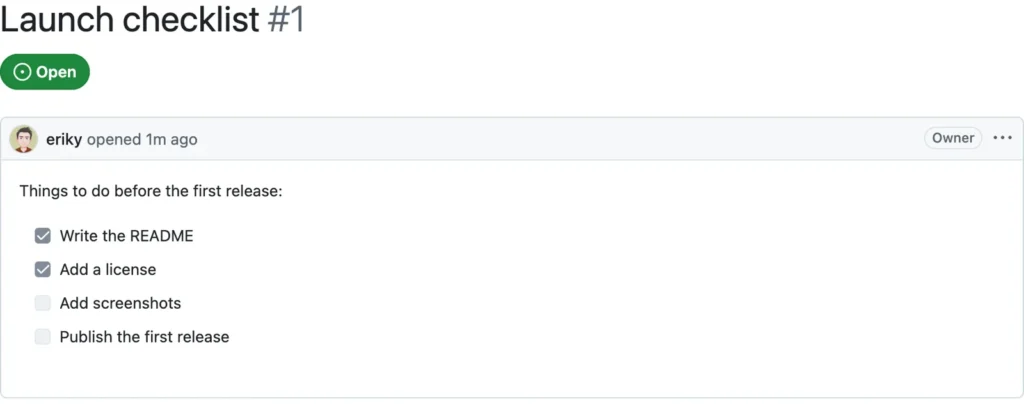
In README and other .md files in a repository, the boxes render the same way but can’t be clicked. To tick one, you edit the file and commit. My README guide has more on what GitHub renders in files.
You may also have seen the special ```[tasklist] code blocks. Those were a preview feature, and GitHub retired them on April 30, 2025. Leftover blocks now show as raw Markdown. Their replacement is sub-issues, which aren’t Markdown at all: they’re a separate section under the issue description, with up to 100 sub-issues per issue and eight levels of nesting. For a simple checklist, a plain task list is still the way to go.
A tip if you render Markdown with GitHub’s REST API yourself: use "mode": "gfm". With "mode": "markdown", every task list in my tests came back as plain [ ] text, even though the same lists render as checkboxes in real README files.
GitLab
GitLab’s docs say the boxes are clickable in issues, merge requests, epics, and comments, and read-only everywhere else. GitLab also has a third state: - [~] marks a task as inapplicable. Clicking an inapplicable box does nothing. GitHub shows [~] as plain text.
Obsidian
Obsidian supports the standard syntax, and you can tick a box by clicking it in Reading view. A few Obsidian specifics from the official help and release notes (I didn’t test these in the app):
- Any character between the brackets counts as checked, so
- [?]or- [-]work as “done” too. On GitHub, they’re just text. - The command “Toggle checkbox status” has the default hotkey Ctrl+L (Cmd+L on a Mac).
- Search understands tasks:
task-todo:finds unchecked tasks andtask-done:finds checked ones.
VS Code
VS Code’s built-in Markdown preview doesn’t render task lists. I checked its source: it uses markdown-it without a task list plugin, and markdown-it shows [ ] as text. Two popular extensions fix that:
- Markdown Checkboxes by Matt Bierner adds checkbox rendering to the preview, and according to its README, to Markdown cells in notebooks too.
- Markdown All in One renders task lists in the preview and adds a “Toggle TaskList” command. Put the cursor on a task line and press Alt+C to check or uncheck it in the source.
Newer VS Code versions also include an optional, still-evolving Markdown editor (run Reopen Editor With from the Command Palette and pick Markdown Editor). Its source code contains clickable task checkboxes, but I haven’t tested it, so I can’t tell you how well that works yet.
Jupyter Notebook and JupyterLab
JupyterLab and Notebook 7 render Markdown cells with marked, with GitHub Flavored Markdown switched on, so task lists show up as checkboxes. You can’t click them, though. The sanitizer forces every checkbox to disabled, so you tick a task by editing the cell. Exporting with nbconvert to HTML keeps the checkboxes too (I tested nbconvert’s Markdown renderer).
Notion
Notion isn’t a Markdown editor, but it borrows the idea. According to Notion’s help, typing [] (no space in between) at the start of a line creates a to-do block with a clickable checkbox.
Your own website
Most Markdown-to-HTML converters output read-only boxes (<input type="checkbox" disabled>). For a checklist visitors can tick, you need boxes without disabled. MkDocs users can enable the pymdownx.tasklist extension with clickable_checkbox: true, which I confirmed leaves out disabled. Plain Python-Markdown, which MkDocs is built on, doesn’t do task lists at all without that extension. Keep in mind that clicking a box on a web page doesn’t save anything. When the page reloads, the boxes are back to what the Markdown says.
Task lists in Pandoc and other converters
Pandoc supports task lists through its task_lists extension. I tested Pandoc 3.9, and the input format matters:
-f gfm: on by default for bullet lists. Numbered task lists (1. [ ]) stay plain text, unlike on GitHub.-f markdown(Pandoc’s own flavor): on by default, for bullet and numbered lists.-f commonmark: off. Add it with-f commonmark+task_lists.
The output depends on the target format. In HTML you get disabled checkboxes. In Word, the boxes become the list bullets ☐ and ☒. In a PDF made via LaTeX, they become the math symbols \square and \boxtimes, which look like the same two boxes. Plain text output uses ☐ and ☒ characters. A typical command:
pandoc -f gfm checklist.md -o checklist.docx
Unlike GitHub, Pandoc respects a backslash: - \[ ] Task stays literal text.
If you work with JavaScript libraries: marked renders task lists out of the box, because its GFM mode is on by default. markdown-it needs a plugin for them (Markdown All in One uses markdown-it-task-lists), and commonmark.js doesn’t support them.
What works where
| Platform | - [ ] renders as a checkbox | Can you click it? | Checkbox in a table |
|---|---|---|---|
| GitHub files (README, docs) | ✅ Yes | No, edit the file | Emoji, or HTML table with a task list |
| GitHub issues, PRs, comments | ✅ Yes | Yes, if you can edit the text | Same as files |
| GitLab | ✅ Yes, plus [~] | Yes in issues, MRs, epics, comments | [x] alone in a cell (18.9+) |
| Obsidian | ✅ Yes, any character counts as checked | Yes, in Reading view | Emoji |
| VS Code preview | ❌ No, shows [ ] | With an extension | Emoji or HTML input |
| JupyterLab / Notebook 7 | ✅ Yes | No, edit the cell | Emoji or HTML input (read-only) |
| Pandoc | ✅ With -f gfm or -f markdown | Not applicable | Emoji or HTML input (HTML output only) |
| MkDocs (Python-Markdown) | ❌ No, needs pymdownx.tasklist | With clickable_checkbox | Emoji or HTML input |
| Notion | Type [] for a to-do block | Yes | Not Markdown |
Frequently asked questions
Why is my Markdown checkbox not working?
Check two things. First, the syntax: it must be a list item, with exactly one space or x between the brackets, a space after the closing bracket, and some text after that. - [], - [ ]Task, and an empty - [ ] all fail on GitHub. Second, the renderer: task lists are a GFM extension, so tools that only do basic Markdown or CommonMark (VS Code’s preview, plain Python-Markdown, markdown-it) show the brackets as text.
How do I add a checkbox to a Markdown table?
On GitHub, use an emoji like ✅ or ☐ in the cell, or build an HTML table with a task list inside a cell (with blank lines around it). An HTML <input type="checkbox"> gets removed by GitHub, but it works in Jupyter, Pandoc, and on most websites. GitLab 18.9 and newer render [x] in a cell as a checkbox. See checkboxes in a Markdown table for all four options.
How do I make a check mark ✓ in Markdown?
Paste the character (✓, ✔️, or ✅), type the HTML entity ✓ for ✓, or use the shortcode :white_check_mark: on GitHub and GitLab for ✅. Markdown has no check mark syntax of its own; the symbol table above lists the common ones.
Can I make the checkboxes clickable?
Only where the app supports it: GitHub issues, pull requests, and comments, GitLab issues and merge requests, Obsidian, and VS Code with an extension. In those, a click updates the Markdown source. In README files, Jupyter, and most converted HTML, the boxes are read-only, and you edit the [ ] by hand.
How do I show a literal [ ] in a list without a checkbox?
In most tools, escape the bracket: - \[ ] text. GitHub ignores that escape and still draws a checkbox, so on GitHub, put the brackets in backticks (- `[ ]` text) or in a <span>. My cheat sheet has more on escaping characters.
Does GitHub still support tasklist blocks?
No. The ```[tasklist] blocks were retired on April 30, 2025, and GitHub replaced them with sub-issues. Regular - [ ] task lists still work everywhere on GitHub, including the clickable boxes in issues.
Conclusion
For a checklist, - [ ] and - [x] are all you need, as long as you mind the spaces and give every task some text. For a table, reach for ✅ and ❌, because that’s the only option that works everywhere, including GitHub. For the rest of the syntax, keep my Markdown cheat sheet handy, and if you’re new to Markdown, start with my Markdown introduction.