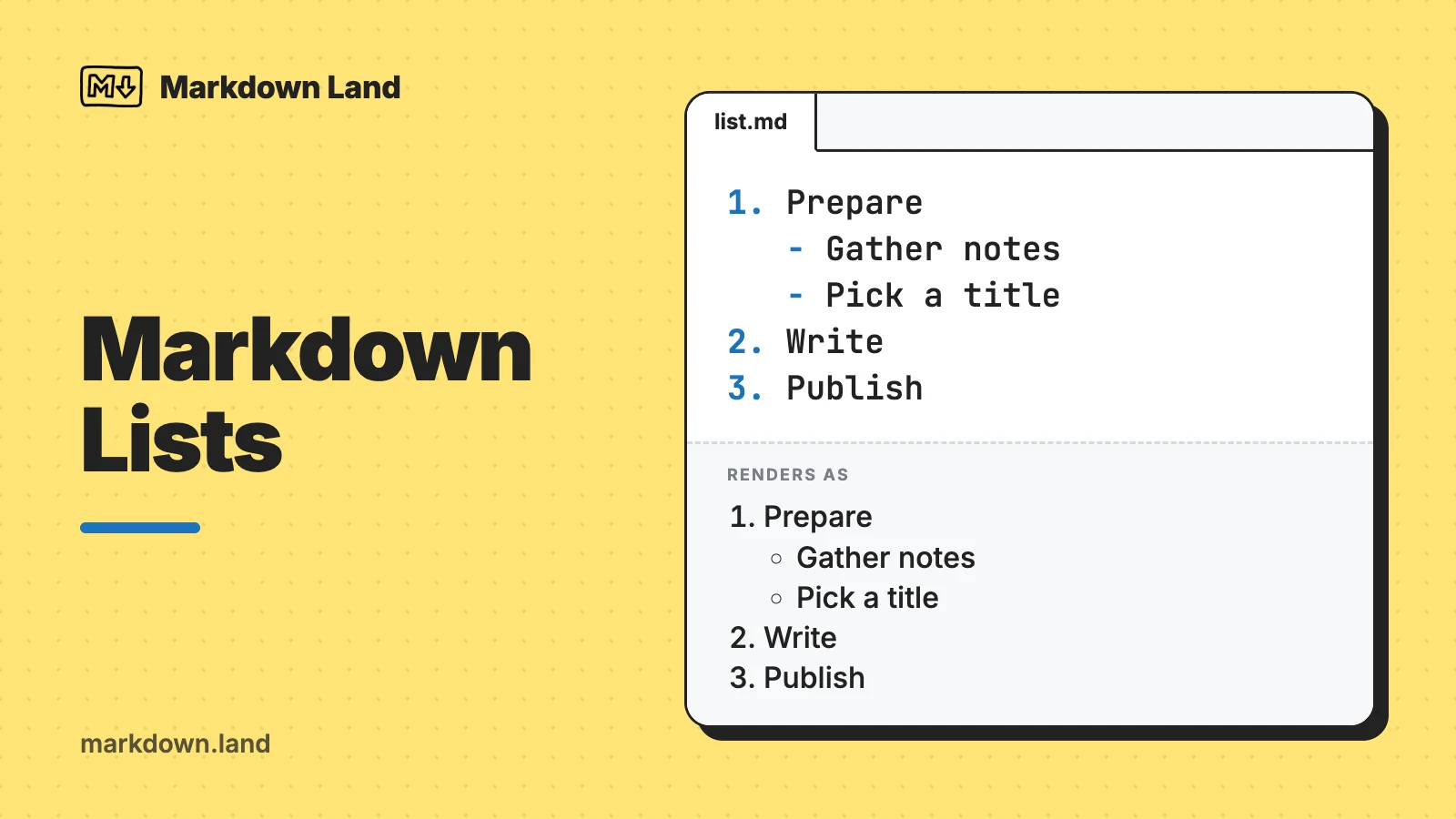
To make a list in Markdown, start each line with - for bullets or 1. for numbers. To nest a list, indent the child items so they line up with the text of the parent item: 2 spaces under - and 3 spaces under 1. . If you want one rule that works everywhere, including MkDocs and other Python-Markdown sites, indent 4 spaces per level.
1. Pack your bag
   - Passport
   - Phone charger
2. Check in online
3. Go to the airport
The result:
- Pack your bag
- Passport
- Phone charger
- Check in online
- Go to the airport
Lists look simple, but they cause more broken Markdown than anything else I know. Nested items that won’t nest, numbered lists that restart at 1 after a code block, two lists that merge into one. Almost all of it comes down to indentation. I tested every example on this page with GitHub’s own Markdown renderer (through its API), commonmark.js (the CommonMark reference parser), markdown-it (the library behind VS Code’s preview), Python-Markdown 3.11 (the engine behind MkDocs) and Pandoc 3.9. Where they disagree, I’ll say so.
Bulleted lists
Start each line with a dash, an asterisk or a plus sign, followed by a space. All three give the same <ul> list:
- Apples
- Pears
- Plums
The result:
- Apples
- Pears
- Plums
Pick one character and stick with it. In CommonMark and on GitHub, switching from - to * in the middle of a list ends the list and starts a new one. You won’t always see that, but the extra spacing between the two lists gives it away. Pandoc and Python-Markdown don’t care and keep it as one list. I use - everywhere: it’s the easiest to type, and it can’t be confused with the * for *italic* text.
- Apples
* Pears
+ Plums
On GitHub, that’s three separate lists with one item each.
Numbered lists
Start each line with a number followed by a period and a space. Only the first number matters. After that, Markdown counts for you. This list:
1. Preheat the oven
2. Mix the dough
3. Bake for 20 minutes
Renders exactly the same as:
1. Preheat the oven
1. Mix the dough
1. Bake for 20 minutes
Both give:
- Preheat the oven
- Mix the dough
- Bake for 20 minutes
Numbering every item 1. is popular for long lists that change often, because you never have to renumber. I prefer real numbers for short lists, because the source is easier to read. Some details worth knowing:
- The first number is the start number. A list that begins with
3.counts 3, 4, 5. In HTML, that becomes<ol start="3">. You can even start at zero. - The numbers after the first are ignored.
1.,5.,2.renders as 1, 2, 3. You can’t skip numbers. - A parenthesis works too, as in
1). That’s CommonMark, so it works on GitHub, in VS Code and in Pandoc, but not in Python-Markdown. Switching between.and)starts a new list. - Python-Markdown (MkDocs) ignores the start number and always counts from 1. Turn on the built-in sane_lists extension to make it respect the first number.
When you don’t want a list
A line that starts with a number and a period becomes a list, even when you didn’t mean it to. 2023. What a year. renders as a numbered list that starts at 2023. Put a backslash before the period to prevent that:
2023\. What a year.
The same trick works for a line that starts with - or +: write \-. My cheat sheet lists all characters you can escape.
Nested lists: how many spaces to indent
Here’s the rule from the CommonMark spec, which GitHub, VS Code and most modern tools follow. Every list item has a content column: the position where the text after the marker starts. Anything that belongs to the item, including a nested list, must be indented to that column.
- Item: the text starts after 2 characters, so nest with 2 spaces.1. Item: the text starts after 3 characters, so nest with 3 spaces.10. Item: the text starts after 4 characters, so nest with 4 spaces.
In other words: line up the child’s marker with the first letter of the parent’s text. GitHub Docs describe it the same way. In an editor with a monospaced font, you can see it:
1. Fruit
   - Apples
   - Pears
     - Conference
     - Doyenne du Comice
2. Vegetables
   1. Carrots
   2. Leeks
The result:
- Fruit
- Apples
- Pears
- Conference
- Doyenne du Comice
- Vegetables
- Carrots
- Leeks
A bit more than the content column is fine too. Up to 3 extra spaces still nest the list. But 4 or more extra spaces is too much: the nested line then glues onto the parent’s text as plain words, and you get “Fruit – Apples” on one line.
The most common mistake: 2 spaces under a numbered item
Many editors and tutorials use 2 spaces for everything. Under a 1. item, that isn’t enough:
1. Fruit
  - Apples
  - Pears
2. Vegetables
In CommonMark, on GitHub and in Pandoc, - Apples is not inside the numbered item. The numbered list ends, a bullet list starts, and 2. Vegetables begins a third list that starts at 2. If the child items are numbered too, they simply join the parent list as items 2 and 3. Add one more space and it works.
Python-Markdown and MkDocs: the 4-space rule
Python-Markdown, the engine behind MkDocs and Material for MkDocs, follows the original Markdown rule: everything nested in a list item must be indented by 4 spaces (or a tab) per level. The developers consider anything less a bug. So the 2- and 3-space examples above don’t nest in MkDocs. You get one flat list instead, and a - item under a 1. item even turns into a numbered item.
The fix is to indent with 4 spaces, which works in every renderer I tested:
1. Fruit
    - Apples
    - Pears
        - Conference
2. Vegetables
If you’d rather keep 2-space indentation in MkDocs, the third-party mdx_truly_sane_lists extension adds a nested_indent setting. I tested it: with it, 2 spaces under - and 3 under 1. nest correctly. Bitbucket’s own Markdown demo repository also nests with 4 spaces and says extra paragraphs must be indented by 4 spaces or a tab. I couldn’t test Bitbucket itself, but if 2 spaces don’t nest there, 4 will.
What works where
| Child item indented by | GitHub, CommonMark, markdown-it | Pandoc | Python-Markdown (MkDocs) |
|---|---|---|---|
2 spaces under - | Nested | Nested | Not nested |
3 spaces under 1. | Nested | Nested | Not nested |
2 spaces under 1. | Not nested, list breaks | Not nested, list breaks | Not nested |
4 spaces under - or 1. | Nested | Nested | Nested |
| 1 tab | Nested | Nested | Nested |
8 spaces under 1. | Glued to parent text | Glued to parent text | Glued to parent text |
Tabs or spaces?
A tab works as 4 spaces in every renderer I tested, so it’s a safe way to nest under both bullets and numbers. The problem is mixing them: a file with tabs in one place and spaces in another looks fine in your editor and breaks in the output. I use spaces only. If you work in VS Code, the indentation size in the status bar tells you what the Tab key inserts.
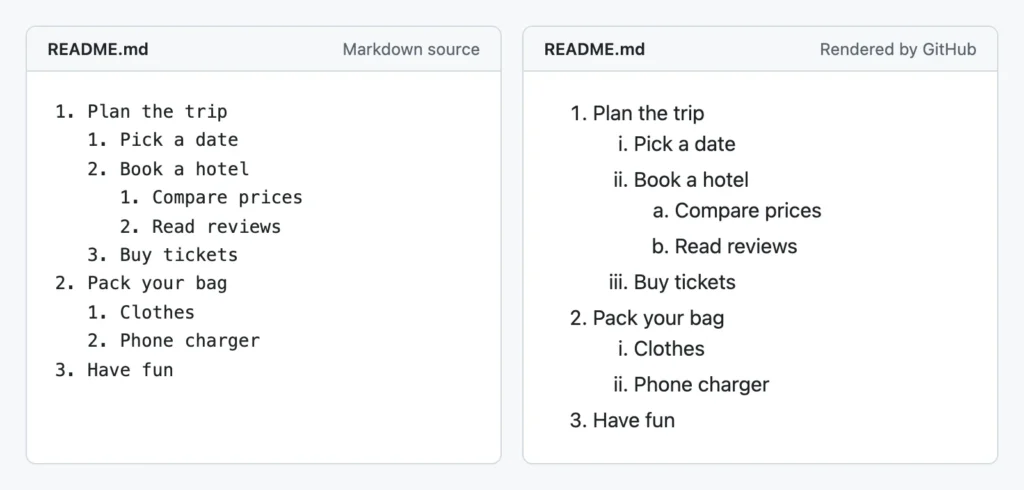
Nested numbered lists on GitHub use i, ii, iii
On GitHub, a numbered list inside another numbered list shows lowercase roman numerals (i, ii, iii), and a third level shows letters (a, b, c). That’s not Markdown, it’s GitHub’s stylesheet: the HTML is a plain <ol>. Elsewhere, you’ll usually see 1, 2, 3 at every level, because that’s the browser default, unless the site’s CSS says otherwise.
A nested numbered list must start at 1
This one surprised me. A nested numbered list that starts at another number doesn’t become a list at all on GitHub and in CommonMark:
1. Step one
   3. Sub-step three
   4. Sub-step four
2. Step two
That renders as “Step one 3. Sub-step three 4. Sub-step four” in a single item. The reason: a numbered list can only interrupt a paragraph if it starts at 1, and “Step one” is a paragraph. Start the sub-list at 1, or put a blank line after “Step one”. Pandoc does make it a list.
Paragraphs, code blocks, images and quotes inside list items
The content column rule applies to everything inside a list item, not just nested lists. To add a second paragraph, a code block, a blockquote or an image to an item, leave a blank line and indent it to the item’s text:
1. Install the package: ```bash npm install markdown-it ``` 2. Add the logo to your README:  Use a relative path, so the image also works in forks. 3. Read the warning: > Don't commit your API keys.
The result:
Install the package:
npm install markdown-itAdd the logo to your README:

Use a relative path, so the image also works in forks.
Read the warning:
Don’t commit your API keys.
The fences, the code, the image and the > all start at column 4, right below the text of the item. For a - item, that’s 2 spaces. If you skip the indentation, the code block or paragraph ends the list, and the numbering restarts (see the next section). My article on code blocks inside lists has more examples, and for line breaks inside an item, see line breaks in lists.
In MkDocs, indent everything inside a list item by 4 spaces. With 3, the paragraph, image and quote in this example all fall out of the list. Fenced code blocks inside lists don’t work at all with the default fenced_code extension. Its documentation says fenced blocks are only supported at the document root. I tested it: the fences show up as inline code. Use the SuperFences extension from PyMdown Extensions instead, and indent the block 4 spaces:
markdown_extensions:
  - pymdownx.superfences
On GitHub and in CommonMark, an image or a blockquote on the line right below the item text (no blank line) works too, as long as it’s indented. Pandoc needs the blank line before a blockquote, so I always add it.
Why your numbered list restarts at 1 (and how to fix it)
You write a step-by-step guide, put a code block between step 1 and step 2, and the result shows 1, code, 1. This is the source:
1. Install the package:

```bash
npm install markdown-it
```

1. Import it in your code
The code block isn’t indented, so it isn’t part of item 1. It ends the list. The next 1. starts a brand-new list, which starts at 1. It happens with any block that isn’t indented: a paragraph, an image, a table, a blockquote.
There are two fixes:
- Indent the block to the item’s text (3 spaces under
1., or 4 to be safe everywhere), as shown in the previous section. Now it’s one list with a code block inside item 1. This is the real fix. - Number the next item explicitly. If you write
2.instead of1., the second list starts at 2, so the numbers look right. GitHub, CommonMark and Pandoc respect the start number; Python-Markdown only does withsane_lists. It’s still two lists, so use this only when the block really can’t be indented, like a table.
Tight and loose lists
A blank line between list items doesn’t end the list, but it does change how it looks. If any two items are separated by a blank line, or any item contains a blank line, the whole list becomes loose: every item’s text is wrapped in a <p> tag, which adds paragraph spacing between the items.
- Tight
- List

<!-- -->

- Loose

- List
The comment in the middle keeps these two lists apart (more on that below). This is the HTML you get:
<ul>
<li>Tight</li>
<li>List</li>
</ul>

<ul>
<li><p>Loose</p></li>
<li><p>List</p></li>
</ul>
So if your list suddenly has big gaps, look for a blank line somewhere in it, or a multi-paragraph item. It’s all or nothing: one blank line makes every item loose.
Ending a list and starting a new one
Since blank lines don’t end a list, two lists in a row merge into one. Even two or three blank lines don’t help in CommonMark, on GitHub or in Pandoc:
- Apples
- Pears

- Carrots
- Leeks
That’s one loose list with four items. To end the first list, put something between them that isn’t indented. An empty HTML comment is invisible and works in every renderer I tested, including Python-Markdown:
- Apples
- Pears

<!-- -->

- Carrots
- Leeks
The Pandoc manual recommends the same trick. Leave a blank line above and below the comment. A heading or a normal paragraph between the lists works too, of course. In CommonMark and on GitHub, switching the bullet character (- to *) also starts a new list, but that doesn’t work in Pandoc or Python-Markdown. Want to comment out a single list item instead? See comments in lists.
A list right after a paragraph
Can a list start on the line right after a paragraph, without a blank line? It depends on the renderer:
My shopping list:
- Apples
- Pears
- GitHub, CommonMark, markdown-it: yes, a bulleted list can interrupt a paragraph.
- But a numbered list only if it starts at 1.
My favorite years:followed by2. Somethingon the next line is plain text. The spec does that on purpose, so a line that happens to start with a number in a wrapped paragraph doesn’t turn into a list. - Pandoc and Python-Markdown: no. Without a blank line, the list items are part of the paragraph, and you get “My shopping list: – Apples – Pears” on one line.
So always put a blank line before a list. It costs nothing and works everywhere.
Lettered and roman numeral lists (a, b, c and i, ii, iii)
Standard Markdown can’t do this. In CommonMark and GitHub Flavored Markdown, ordered list markers are digits only, so a. and i. are plain text. You have three options.
1. Use HTML. The type attribute of the <ol> element takes a, A, i, I or 1 (see MDN):
<ol type="a">
  <li>Preheat the oven</li>
  <li>Mix the dough</li>
  <li>Bake for 20 minutes</li>
</ol>
The result:
- Preheat the oven
- Mix the dough
- Bake for 20 minutes
GitHub keeps the type attribute and shows letters. Elsewhere, browsers show letters by default, unless the site’s CSS overrides the list style. start works too (<ol start="3">), but GitHub strips reversed. One catch: Markdown on the same line as <li> isn’t processed, so **bold** shows the asterisks. Use HTML tags like <strong> inside, or put the Markdown on its own line with a blank line above and below it.
2. Use Pandoc. Pandoc’s fancy_lists extension, on by default, supports letters and roman numerals directly:
a. Preheat the oven
b. Mix the dough

(i) First
(ii) Second
It also accepts A. (followed by two spaces, to avoid turning names like “A. Smith” into a list), i., 1) and #. for automatic numbering.
3. Nest the list on GitHub. If you only need letters or roman numerals for sub-items, a nested numbered list on GitHub already shows i, ii, iii at the second level and a, b, c at the third, as explained above.
Indenting text that isn’t a list
People search for “Markdown indent” when they just want to push a line of text to the right. Spaces don’t work for that: Markdown removes leading spaces, and 4 or more turn the line into a code block. Your options:
- Non-breaking spaces:
Indented text. Each is one space that Markdown and HTML don’t collapse. - Em spaces:
 is a wider space, about the width of the letter M. Two of them make a nice paragraph indent. - A blockquote:
> textindents the whole paragraph, with a vertical bar on most sites.
  This paragraph starts with two em spaces.
The result:
This paragraph starts with two em spaces.
Both entities work on GitHub and in every renderer I tested. If you control the CSS, a class with text-indent or margin-left is cleaner, but on GitHub, style attributes are stripped.
Lists inside table cells
A Markdown table row has to fit on one line, so a Markdown list can’t go in a cell. HTML can. GitHub and most renderers that allow HTML accept <ul> and <ol> inside a cell. Unlike in a standalone HTML list, Markdown inside the <li> tags (like **bold** or `code`) still works here:
| Step    | What you need                                  |
| ------- | ---------------------------------------------- |
| Install | <ul><li>Node.js</li><li>`npm`</li></ul>        |
| Run     | <ol><li>Build</li><li>Start</li></ol>          |
| Simple  | • Build<br>• Start                             |
The result:
| Step | What you need |
|---|---|
| Install |
|
| Run |
|
| Simple | • Build • Start |
The last row is the low-tech option: a bullet character and a <br> line break. It’s easier to read in the source, too. One exception I found: Pandoc’s own Markdown reader drops HTML lists in table cells, and those cells came out empty. With pandoc -f gfm, they’re kept, and the <br> version works either way. More table workarounds are in my Markdown table guide.
Definition lists
A definition list is a list of terms with a description each, like a glossary. In HTML, that’s <dl>, <dt> and <dd>. CommonMark and GitHub don’t have a Markdown syntax for it, but Pandoc, PHP Markdown Extra, kramdown (Jekyll) and Python-Markdown with the def_list extension use this:
Markdown
: A lightweight markup language.

Pandoc
: A document converter.
The result:
- Markdown
- A lightweight markup language.
- Pandoc
- A document converter.
I tested Pandoc and Python-Markdown; kramdown and PHP Markdown Extra are from their documentation. On GitHub, that source shows up as “Markdown : A lightweight markup language.” Write the HTML tags instead; GitHub keeps them.
Task lists (checkboxes)
Put [ ] or [x] after the bullet to make a checklist:
- [x] Write the draft
- [ ] Add screenshots
The result:
- Write the draft
- Add screenshots
Task lists are a GitHub Flavored Markdown extension. They work on GitHub (in files, issues and pull requests) and in Pandoc. commonmark.js, markdown-it and Python-Markdown show the brackets as text unless you add a plugin (pymdownx.tasklist for MkDocs). The cheat sheet has a short section on task lists.
Markdown lists: what works where
| Feature | GitHub | CommonMark (commonmark.js, markdown-it) | Pandoc | Python-Markdown (MkDocs) |
|---|---|---|---|---|
-, *, + bullets | Yes | Yes | Yes | Yes |
| Changing bullet character starts a new list | Yes | Yes | No | No |
Start number (3.) | Yes | Yes | Yes | With sane_lists |
1) instead of 1. | Yes | Yes | Yes | No |
Nesting with 2 spaces (-) or 3 (1.) | Yes | Yes | Yes | No |
| Nesting with 4 spaces or a tab | Yes | Yes | Yes | Yes |
| List right after a paragraph | Yes (numbered: start at 1) | Yes (numbered: start at 1) | No | No |
| Fenced code block in a list item | Yes | Yes | Yes | With SuperFences |
<!-- --> to separate two lists | Yes | Yes | Yes | Yes |
Letters and roman numerals (a., i.) | HTML only | HTML only | Yes | HTML only |
| Definition lists | HTML only | HTML only | Yes | With def_list |
| Task lists | Yes | No | Yes | With pymdownx.tasklist |
More resources
- The lists chapter of the CommonMark spec has the exact rules, with dozens of examples.
- GitHub Docs on lists cover nested lists and task lists on GitHub.
- Pandoc’s manual has a full section on lists, including example lists and fancy numbering.
- All basic Markdown syntax on one page: my Markdown cheat sheet.
- Writing a README full of lists? See how to write a good README.md.
FAQ
How many spaces do I need to indent a nested list in Markdown?
Indent the child item so it lines up with the parent’s text: 2 spaces under - , 3 under 1. , and 4 under 10. . That’s the CommonMark rule, used by GitHub and VS Code. Python-Markdown, and so MkDocs, needs 4 spaces per level. 4 spaces works in all of them.
Why does my numbered list start at 1 again?
Something between the items that isn’t indented ended the list: usually a code block, an image or a paragraph. Indent that block to line up with the item’s text (3 spaces for 1.), and the list continues. Or start the next item with the right number, like 2., which most renderers respect.
How do I make a list with letters (a, b, c) in Markdown?
Standard Markdown only numbers with digits. Use HTML (<ol type="a">), which works on GitHub, or Pandoc, which understands a. and i. directly. On GitHub, nested numbered lists show i, ii, iii and a, b, c automatically.
Can I put a list inside a Markdown table?
Not with Markdown syntax, because a table row has to be on one line. Use HTML in the cell: <ul><li>One</li><li>Two</li></ul>. Or fake it with • One<br>• Two.
Should I use tabs or spaces to indent Markdown lists?
Either works: every renderer I tested treats a tab like 4 spaces. Just don’t mix them in one file. I use spaces, because they look the same in every editor and on GitHub.
How do I start a new list right after another one?
Put an empty HTML comment (<!-- -->) with a blank line above and below it between the two lists. Blank lines alone don’t end a list, but the comment does, and it’s invisible in the output.